
This guide provides comprehensive instructions for faculty members at Florida Tech on how to effectively edit and manage their faculty profiles. A well-maintained profile is crucial for showcasing expertise, attracting collaborations, and enhancing the university’s overall visibility. Whether you’re updating your research interests, adding new publications, or refining your biographical information, this article will walk you through the process.
Understanding the Importance of Your Faculty Profile
Your faculty profile is more than just an online listing; it’s a dynamic representation of your academic journey and contributions to Florida Tech. It serves as a primary point of contact for prospective students, fellow researchers, industry partners, and the broader academic community. A complete and accurate profile can lead to increased research opportunities, invitations to speak at conferences, and greater recognition within your field.
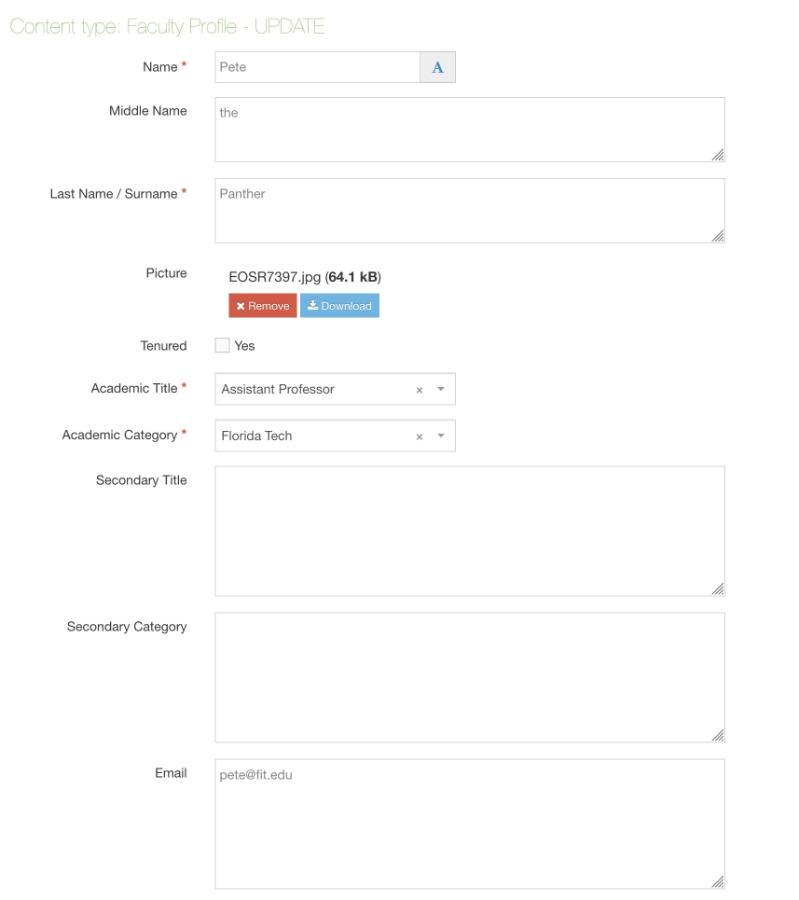
Key Components of a Comprehensive Faculty Profile
A robust faculty profile typically includes several essential elements:
- Contact Information: This should be accurate and up-to-date, including your email address, office location, and phone number.
- Biographical Sketch: A concise yet informative summary of your academic background, career highlights, and professional journey. This section offers a narrative to your achievements.
- Education: A detailed list of your degrees, the institutions where you earned them, and the years of completion.
- Research Interests: Clearly defined areas of expertise. This helps attract students and collaborators with similar academic pursuits. Be specific and use keywords relevant to your discipline.
- Publications: A comprehensive list of your published works, including journal articles, book chapters, conference proceedings, and edited volumes. Categorizing these can be beneficial.
- Grants and Funding: A record of grants you have received, including the funding agency, project title, and duration. This demonstrates your ability to secure external support.
- Awards and Honors: Recognition for your academic achievements, teaching excellence, or service to the university and your field.
- Professional Experience: A summary of your roles outside of Florida Tech, such as industry experience, consulting, or previous academic appointments.
- Teaching Interests: The courses you are qualified to teach or have taught, along with any specializations in pedagogical approaches.
- Service: Contributions to departmental, university, or professional committees and organizations.
Navigating the Faculty Profile Management System
Florida Tech utilizes a specific system for faculty to manage their profiles. While the exact interface may evolve, the general principles and steps remain consistent. This section outlines how to access and utilize the system.
Accessing Your Faculty Profile Portal
- Login Credentials: You will typically need your university-issued username and password to access the faculty profile system. This is often integrated with other university systems, such as single sign-on (SSO).
- Locating the Portal: Navigate to the faculty affairs or academic technology section of the Florida Tech website. Look for links labeled “Faculty Profile,” “Faculty Directory,” or “My Profile.” Alternatively, your department administrator may provide a direct link or instructions.
- Dashboard Overview: Upon logging in, you will likely be presented with a dashboard or editing interface. Familiarize yourself with the layout, noting sections for different types of information.
General Editing Procedures
Most faculty profile systems follow a similar pattern for updating information:
- Section-Based Editing: Information is usually organized into distinct sections (e.g., “Education,” “Publications”). Click on the relevant section to begin editing.
- “Edit” or “Add” Buttons: Within each section, you’ll find options to “Edit” existing entries or “Add” new ones. For example, to add a new publication, you’d click “Add Publication.”
- Form Fields: Editing typically involves filling out form fields. These fields are designed to capture specific pieces of information (e.g., title, author, year for a publication).
- Saving Changes: Crucially, after making any modifications, always look for a “Save” or “Update” button. Failure to save will result in your changes being lost. It’s good practice to save frequently as you work.
- Preview Functionality: Some systems offer a “Preview” option, allowing you to see how your updated profile will appear to others before making it live. Utilize this to catch any errors or formatting issues.
Detailed Steps for Editing Specific Profile Sections
Let’s delve into the specifics of updating common sections within your faculty profile.
Updating Biographical Information and Contact Details

- Biographical Sketch:
- Access the “Biography” or “About Me” section.
- You’ll typically find a rich text editor, allowing you to format your text (bold, italics, bullet points).
- Write in the third person.
- Keep it concise and highlight your most significant achievements and areas of focus. Consider tailoring it slightly for different audiences if the system allows for multiple versions, though generally, one comprehensive bio is standard.
- Proofread carefully for grammar and spelling errors.
- Contact Information:
- Navigate to the “Contact Information” or “Personal Details” section.
- Ensure your university email address, office phone number, and office location are accurate.
- If you have a professional website or a LinkedIn profile, there may be a field to include a link.
Managing Publications and Research Output
This is often the most substantial section of a faculty profile and requires careful attention.
- Adding a New Publication:
- Go to the “Publications” section.
- Click “Add New Publication” or a similar button.
- Publication Type: Select the correct type (e.g., Journal Article, Book Chapter, Conference Paper, Book).
- Details: Accurately fill in all relevant fields:
- Title: The full title of the publication.
- Authors: List authors in the correct order, usually separated by commas. Specify your name clearly.
- Journal/Book Title: The name of the journal or book where it was published.
- Volume/Issue: For journals, provide the volume and issue numbers.
- Pages: The page range.
- Year of Publication: The year it was published.
- DOI (Digital Object Identifier): If available, include the DOI. This is crucial for linking to the publication online and is highly recommended.
- Abstract (Optional): Some systems allow for an abstract.
- Link (Optional): You might be able to link to the published work if it’s openly accessible.
- Citation Styles: Be aware of standard citation styles (e.g., APA, MLA, Chicago) and try to maintain consistency within your profile.
- Editing Existing Publications:
- Find the publication you wish to edit in the list.
- Click the “Edit” icon or link associated with it.
- Make your corrections and save.
- Organizing Publications:
- If the system allows, consider creating sub-sections for different publication types (e.g., “Peer-Reviewed Journal Articles,” “Books,” “Conference Presentations”). This enhances readability.
- Some systems might automatically sort publications by year.
Showcasing Research Interests and Expertise
- Keywords and Phrases:
- Go to the “Research Interests” or “Areas of Expertise” section.
- Use clear, specific keywords that accurately reflect your research. Think about terms that someone searching for a collaborator or a specific expertise would use.
- Avoid overly broad terms. Instead of “Engineering,” consider “Aerospace Propulsion Systems” or “Biomaterials Engineering.”
- Categorization:
- If the system offers predefined categories or tags, utilize them. This can help with searchability within the university directory.
- If you have a free-text field, list your interests as bullet points or a short, descriptive paragraph.
Updating Education, Awards, and Experience
- Education:
- Access the “Education” section.
- Add new degrees by specifying the degree name (e.g., Ph.D., M.S.), the major, the institution, and the year of completion.
- Ensure the order is typically from highest degree to lowest.
- Awards and Honors:
- Navigate to the “Awards and Honors” section.
- List significant recognitions, including the name of the award, the granting body, and the year received.
- Professional Experience:
- In the “Professional Experience” section, detail relevant work outside of Florida Tech. This could include industry roles, post-doctoral positions, or visiting professorships.
- Include the organization name, your title, and the dates of employment or engagement.
Best Practices for Profile Maintenance
Maintaining an up-to-date and polished faculty profile is an ongoing responsibility.
Regular Updates
- Schedule Time: Set a reminder (e.g., bi-annually or quarterly) to review and update your profile. This prevents information from becoming outdated.
- New Publications: As soon as a new publication is accepted or released, add it to your profile.
- New Awards/Grants: Similarly, update your profile promptly when you receive new awards or secure funding.
Accuracy and Consistency
- Proofread: Always proofread your entries for typos, grammatical errors, and factual inaccuracies.
- Consistent Formatting: While the system dictates some formatting, ensure consistency in how you present information, especially in free-text fields.
- Author Order: Be precise with author order in publications.

Utilizing Profile Features Effectively
- Keywords: Employ strategic keywords in your research interests and biography to improve discoverability.
- Links: If permitted, include links to your professional website, research lab pages, or relevant professional organizations.
- Profile Picture: Upload a professional, high-resolution headshot. A clear, friendly image enhances approachability.
By diligently following these steps and best practices, Florida Tech faculty can ensure their profiles accurately reflect their accomplishments and expertise, serving as a valuable asset for their professional endeavors and the university community.
LifeOutOfTheBox is a participant in the Amazon Services LLC Associates Program, an affiliate advertising program designed to provide a means for sites to earn advertising fees by advertising and linking to Amazon.com. Amazon, the Amazon logo, AmazonSupply, and the AmazonSupply logo are trademarks of Amazon.com, Inc. or its affiliates. As an Amazon Associate we earn affiliate commissions from qualifying purchases.