
Imagine arriving at your luxurious suite at the Grand Hyatt Hotel in New York City, or perhaps a charming boutique hotel in the heart of Paris, after a long day of exploring the Eiffel Tower or attending a crucial business conference. The last thing on your mind might be a technical headache. Yet, for many modern travelers, unwinding involves more than just a comfortable bed and room service. For a growing number of us, bringing along an Xbox – be it the powerful Xbox Series X, the sleek Xbox Series S, or even a trusted Xbox One – is an essential part of the travel experience. It offers a familiar escape, a way to stay connected with friends, or simply a convenient form of entertainment for downtime during long stays.
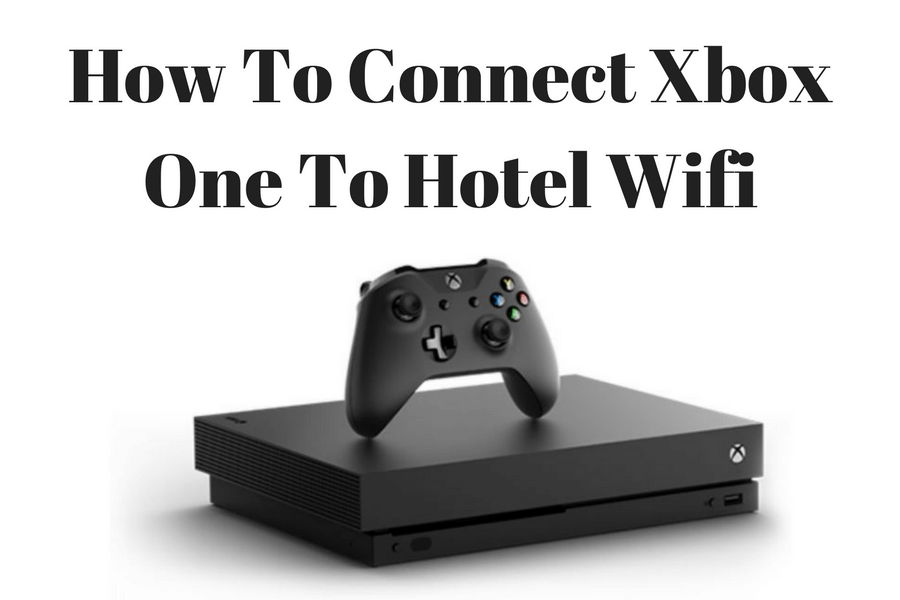
However, the seemingly simple task of connecting your console to the hotel’s Wi-Fi can often turn into an unexpected challenge. Unlike the straightforward setup you enjoy at home, hotel Wi-Fi networks come with their own set of quirks, primarily designed for devices with web browsers like laptops and smartphones. Your Xbox, designed for direct internet access, doesn’t inherently have the tools to navigate these authentication hurdles. But don’t despair! With a little preparation and the right approach, you can transform your hotel room into a personal gaming hub, ensuring that your travel, whether for leisure or business, is as enjoyable and connected as possible. This comprehensive guide will walk you through various methods to get your Xbox online in any hotel, enhancing your accommodation experience and offering a slice of home comfort no matter where your adventures take you.
Understanding the Hotel Wi-Fi Hurdle
The primary reason connecting an Xbox to hotel Wi-Fi can be tricky lies in what’s known as a “captive portal.” When you connect a device like a smartphone or laptop to a hotel’s Wi-Fi network, you’re usually redirected to a special web page. This page might ask for your room number and last name, a login and password provided at check-in, or even payment for premium access. This is the captive portal, and it’s how hotels manage network access, monitor usage, and often upsell services.
The problem for your Xbox is simple: it doesn’t have a built-in web browser to access and interact with these captive portals. When it tries to connect to the Wi-Fi, it sees an internet connection, but it can’t complete the authentication process. Without successfully passing through the portal, the Xbox remains isolated from the wider internet, unable to download updates, access online multiplayer, or stream content. This technical barrier is the first hurdle you need to overcome, and understanding it is key to finding the right solution. Furthermore, hotels often implement network security measures that can sometimes complicate device-to-device communication or restrict certain types of network traffic, making direct connection even more elusive.
Method 1: The Smartphone/Laptop Bridge – Your Digital Gateway
One of the most common and often easiest ways to get your Xbox online in a hotel is to use another device – specifically a laptop or a smartphone – as an intermediary. This method essentially uses your browser-equipped device to “trick” the hotel’s network into thinking your Xbox is part of its approved connection.
Using a Windows PC to Share Wi-Fi
A Windows laptop can be an incredibly powerful tool for bridging your Xbox to the hotel’s Wi-Fi. The process involves connecting your laptop to the hotel Wi-Fi and then sharing that internet connection with your Xbox, either wirelessly or via an Ethernet cable.
- Connect Your PC to Hotel Wi-Fi: First, connect your Windows PC to the hotel’s Wi-Fi network as you normally would. Open a browser, navigate through the captive portal, and ensure your laptop has full internet access.
- Find Your Xbox’s MAC Address: On your Xbox, go to Settings > Network Settings > Advanced Settings. Note down the “Wired MAC” and “Wireless MAC” addresses. You’ll likely need the wireless one for this method.
- Identify Your PC’s MAC Address: On your PC, open the Command Prompt (type
cmdin the search bar) and enteripconfig /all. Look for the “Physical Address” under your Wi-Fi adapter. - MAC Address Spoofing/Registration (Crucial Step): This is where it gets clever. Some hotel portals allow you to register additional devices by entering their MAC addresses. If so, simply enter your Xbox’s Wireless MAC address into the portal (after logging in with your PC). If not, you may need to “spoof” your PC’s MAC address to match your Xbox’s MAC address before connecting your PC to the hotel Wi-Fi. To do this:
- Open Device Manager (search for it in Windows).
- Expand “Network adapters,” right-click your Wi-Fi adapter, and select “Properties.”
- Go to the “Advanced” tab, select “Network Address” or “Locally Administered Address,” and enter your Xbox’s Wireless MAC address (without hyphens or colons).
- Reconnect your PC to the hotel Wi-Fi. Now, when your PC logs in, the hotel network thinks it’s your Xbox.
- Important: Once logged in, change your PC’s MAC address back to its original.
- Share the Connection (Wireless Hotspot):
- On your PC, go to Settings > Network & Internet > Mobile hotspot.
- Toggle “Share my Internet connection with other devices” to On.
- Under “Share my internet connection from,” select “Wi-Fi.”
- Note the “Network name” and “Network password.”
- Connect Xbox to PC Hotspot: On your Xbox, search for Wi-Fi networks and connect to the hotspot created by your PC.
Bridging the Connection with a Mac
For those who travel with an Apple MacBook or iMac, sharing the internet connection is equally straightforward, utilizing the “Internet Sharing” feature in macOS.
- Connect Your Mac to Hotel Wi-Fi: Connect your Mac to the hotel Wi-Fi and complete the captive portal authentication to ensure it has internet access.
- Find Xbox’s MAC Address: Same as with Windows: Settings > Network Settings > Advanced Settings on your Xbox.
- Identify Mac’s MAC Address: On your Mac, go to System Settings > Network > Wi-Fi > Details > TCP/IP. The MAC address is listed as “Hardware Address.”
- MAC Address Spoofing/Registration: Similar to the Windows method, either register the Xbox’s MAC address if the portal allows, or temporarily change your Mac’s MAC address to match your Xbox’s (this is more complex on macOS and often requires Terminal commands, so it’s generally recommended only if direct registration isn’t an option).
- Share the Connection:
- On your Mac, go to System Settings > General > Sharing.
- Turn on “Internet Sharing.”
- In the “Share your connection from” dropdown, select “Wi-Fi.”
- In the “To computers using” section, check “Wi-Fi.”
- Click “Wi-Fi Options…” to set up a network name (SSID) and password for your new hotspot. Choose WPA2 Personal for security.
- Click “Start” to begin sharing.
- Connect Xbox to Mac Hotspot: On your Xbox, connect to the Wi-Fi network created by your Mac.
Android and iOS Hotspot Workarounds
While Android and iOS devices excel at creating personal hotspots using their cellular data, they typically cannot re-broadcast an existing Wi-Fi connection from a hotel network. This means using your phone’s hotspot would consume your mobile data, which might not be ideal for gaming or large downloads. However, there are still ways your smartphone can assist:
- MAC Address Registration via Phone: After connecting your phone to the hotel Wi-Fi and passing through the captive portal, check if the portal offers an option to register additional devices by their MAC address. If it does, you can enter your Xbox’s MAC address there. Once registered, your Xbox might be able to connect directly to the hotel Wi-Fi.
- Temporary Cellular Hotspot: In a pinch, if you only need to download a small update or send a quick message, and have sufficient cellular data, you can use your phone’s personal hotspot feature.
- On Android: Go to Settings > Network & Internet > Hotspot & Tethering > Wi-Fi hotspot. Turn it on and note the network name and password.
- On iOS: Go to Settings > Personal Hotspot. Toggle “Allow Others to Join” to on and note the Wi-Fi Password.
- Connect your Xbox to this cellular hotspot. Remember, this uses your phone’s data plan and might incur charges, especially if you’re traveling internationally, for example, away from your home network in Canada or the United States.
Method 2: The Travel Router – Ultimate Portability and Reliability
For frequent travelers or those who prioritize a seamless, secure, and multi-device connection, investing in a portable travel router is an excellent solution. Brands like GL.iNet or TP-Link Nano Router offer compact devices specifically designed for this purpose.
- What is a Travel Router? A travel router acts as a bridge between the hotel’s Wi-Fi and your devices. It connects to the hotel’s public network, navigates the captive portal (using its own built-in mini-browser), and then broadcasts its own private, secure Wi-Fi network that all your devices, including your Xbox, can connect to.
- How it Works:
- Setup: Before your trip, configure your travel router at home, setting up its own Wi-Fi name and password.
- At the Hotel: Plug in your travel router.
- Connect to Router’s Wi-Fi: Using a smartphone or laptop, connect to the travel router’s Wi-Fi network.
- Access Router’s Interface: Open a web browser, go to the travel router’s administrative interface (usually an IP address like 192.168.8.1).
- Connect Router to Hotel Wi-Fi: From the router’s interface, scan for available Wi-Fi networks, select the hotel’s network, and complete the captive portal login using your phone or laptop. Once the router itself is online, it will maintain that connection.
- Connect Xbox to Router: Your Xbox (and all other devices) can now connect to your travel router’s private Wi-Fi network without ever having to deal with the hotel’s captive portal directly.
- Benefits:
- One-Time Authentication: Only the travel router needs to pass the captive portal, saving you the hassle of logging in each time on every device.
- Enhanced Security: Your devices are behind your own private firewall, offering better protection on public networks.
- Multi-Device Connectivity: Connect your Xbox, phone, laptop, tablet, and smart devices all to one secure network.
- Consistent Experience: Your devices see the same network name and password every time, regardless of the hotel.
- Potential for Ethernet: Many travel routers also have an Ethernet port, which can be useful if the hotel provides an in-room Ethernet connection.
- Considerations: It’s an additional piece of hardware to purchase and carry, but for frequent travelers, the convenience and security often outweigh this minor drawback. When planning a trip to a bustling city like London or for a long-term business stay in Dubai, a travel router can significantly improve your digital lifestyle.
Method 3: Direct Hotel Assistance & Ethernet Options
Sometimes, the simplest solution is to ask for help, or to look for an often-overlooked physical connection.
Contacting the Front Desk or IT Support
Hotels, especially those catering to business travelers or extended stays, are increasingly aware of guests’ varied connectivity needs. If the above methods seem too technical or don’t work, don’t hesitate to reach out to the hotel staff.
- Be Prepared: Have your Xbox’s MAC address (both wired and wireless) written down before you call.
- Explain the Situation: Politely explain that you’re trying to connect a gaming console (like an Xbox) that doesn’t have a web browser to their Wi-Fi and that it requires a manual registration of its MAC address.
- Ask for IT: Often, the front desk can either guide you through a special portal or, more likely, connect you with their IT support or a technician who can manually whitelist your Xbox’s MAC address on their network. This allows your Xbox to bypass the captive portal automatically.
- Patience is Key: Depending on the hotel’s resources and the time of day, this might take a little time. Be patient and polite; they are there to help make your accommodation as comfortable as possible. This approach is often successful in larger chain hotels like those under Marriott International or Hilton Worldwide, which tend to have more robust IT infrastructure.
The Elusive Ethernet Port
While less common in modern hotel rooms focused on Wi-Fi, some establishments, particularly older hotels or business-oriented ones, still offer a physical Ethernet port. This is by far the simplest and most reliable connection method if available.
- Check for a Port: Look for an Ethernet port (it resembles a larger phone jack) on the wall near the desk, behind the TV, or sometimes on the phone itself.
- Plug and Play: If you find one, simply connect an Ethernet cable from the port to your Xbox.
- Instant Connection: In many cases, the Xbox will immediately detect the wired connection and establish internet access without any further steps or captive portal issues. However, some hotels might still require a form of authentication even for wired connections; if so, you might need to use one of the other methods or contact the front desk. Always carry a short Ethernet cable with you, just in case.
Pre-Travel Preparation & Troubleshooting Tips
A little foresight can save a lot of frustration when traveling with your Xbox. Preparing adequately ensures that your relaxing getaway to a family-friendly resort in Orlando or your important business trip to Singapore isn’t marred by connectivity woes.
Before You Depart
- Know Your MAC Address: Before you leave home, go into your Xbox’s network settings and write down both the wired and wireless MAC addresses. Keep this information handy.
- Pack Essential Cables: Ensure you have your HDMI cable, power cable, and ideally, a short Ethernet cable (even if you don’t expect to use it, it can be a lifesaver).
- Consider a Travel Router: If you frequently travel with multiple devices or value network security, purchasing a portable travel router is a wise investment. Get it set up and tested at home first.
- Research Hotel Wi-Fi Policies: If possible, call the hotel directly or check their website for details on their Wi-Fi policy. Ask if they have any specific procedures for gaming consoles or devices without web browsers. Some hotels might offer premium Wi-Fi tiers that bypass the captive portal for a fee.
- Offline Games: Prepare a few single-player games that don’t require an internet connection, just in case you absolutely cannot get online. This provides a fallback option to still enjoy your console.

Common Troubleshooting Scenarios
Even with the best preparation, you might encounter issues. Here’s how to tackle some common problems:
- Slow or Unstable Connection:
- High Occupancy: Hotel Wi-Fi can be notoriously slow, especially during peak hours or in large hotels like those near major landmarks such as the Statue of Liberty or the Louvre Museum. Try connecting during off-peak hours.
- Interference: Other devices or Wi-Fi networks can cause interference. Try moving your Xbox or bridging device to a different spot in the room.
- Method Check: If using a laptop or travel router, ensure that device has a strong and stable connection to the hotel Wi-Fi first.
- Contact Hotel IT: If speeds are consistently poor, the hotel IT might be able to diagnose a network issue or suggest an alternative connection method.
- Connection Drops Frequently:
- Re-Authentication: Some hotel Wi-Fi networks require re-authentication after a certain period. If using a laptop or travel router bridge, ensure the bridging device isn’t losing its connection to the hotel Wi-Fi.
- Restart Everything: A classic IT solution: restart your Xbox, your bridging device (laptop/router), and if possible, ask the hotel to reset their local access point.
- MAC Address Issues:
- Double-Check: Ensure you’ve accurately entered your Xbox’s MAC address when attempting registration or spoofing. Even a single digit error can cause issues.
- Contact Hotel: If the hotel registered your MAC address and it’s still not working, they might have made an error or there might be a network configuration issue on their end.
- DNS Settings: Occasionally, hotel networks might have specific DNS configurations. While your Xbox usually handles this automatically, if all else fails, you could try manually configuring the DNS settings on your Xbox to public DNS servers like Google DNS (8.8.8.8 and 8.8.4.4) or Cloudflare DNS (1.1.1.1 and 1.0.0.1). This is a more advanced troubleshooting step.
Bringing your Xbox on your travels, whether for a quick weekend getaway or an extended stay exploring historical sites like the Colosseum in Rome, transforms your accommodation from merely a place to sleep into a personalized entertainment hub. It’s about enhancing your lifestyle on the road, offering a familiar comfort that can be especially welcome after a day of new experiences or intense meetings. While hotel Wi-Fi can pose challenges, a bit of preparation and knowledge of these solutions will ensure your gaming adventures continue seamlessly, no matter which destination you choose—from the vibrant beaches of Cancun to the bustling streets of Tokyo. Don’t let a captive portal capture your fun; empower yourself with these methods and enjoy a truly connected travel experience.
LifeOutOfTheBox is a participant in the Amazon Services LLC Associates Program, an affiliate advertising program designed to provide a means for sites to earn advertising fees by advertising and linking to Amazon.com. Amazon, the Amazon logo, AmazonSupply, and the AmazonSupply logo are trademarks of Amazon.com, Inc. or its affiliates. As an Amazon Associate we earn affiliate commissions from qualifying purchases.