
Traveling the world offers unparalleled opportunities to explore new destinations, immerse oneself in diverse cultures, and create unforgettable memories. Whether your journey takes you to the bustling streets of New York City, the romantic avenues of Paris, or the serene beaches of Bali, the allure of adventure is constant. However, for many modern travelers, particularly those who embrace the lifestyle of blending work and leisure, or simply wish to unwind after a day of sightseeing, the desire for entertainment remains. Bringing a PlayStation 5 (PS5) on your travels has become increasingly common, allowing you to carry your digital escapades wherever you go. From competitive online multiplayer sessions to sprawling single-player epics, the PS5 offers a portal to endless entertainment.
The challenge, however, often arises when attempting to connect this advanced gaming console to the varied and sometimes complex Wi-Fi networks found in hotels and other forms of accommodation. Unlike connecting a smartphone or a laptop, which typically navigate captive portals with ease, gaming consoles can present unique hurdles. This comprehensive guide is designed to demystify the process, ensuring your PS5 is connected, and your gaming experience remains uninterrupted, allowing you to truly relax whether you’re staying at a luxurious Four Seasons resort, a business-friendly Marriott, or a cozy boutique hotel.

Understanding Hotel Wi-Fi Networks: A Traveler’s Perspective
Before diving into the “how-to,” it’s crucial to understand the nature of hotel Wi-Fi. These networks are fundamentally different from your home setup, primarily due to security protocols, user management systems, and bandwidth allocation designed for multiple guests. Navigating these differences is the first step towards seamless connectivity for your PS5.
The Intricacies of Captive Portals
The most common hurdle you’ll encounter is the “captive portal.” This is the web page that automatically appears when you first try to access the internet on a new device, requiring you to enter room numbers, last names, or agree to terms and conditions. While commonplace for laptops and smartphones, which have full-featured web browsers, the PS5’s built-in browser is often limited in functionality, making this step tricky. Hotels like Hilton, Hyatt, and many independent resorts across Europe and Asia utilize these for various reasons, including security, billing, and bandwidth management. They act as a gateway, ensuring only authorized guests access the network, and often allow for different tiers of service, from basic complimentary access to premium high-speed options.
Common Connectivity Hurdles Beyond the Portal
Even once past the captive portal, other issues can arise. Hotel Wi-Fi, especially during peak hours, can suffer from limited bandwidth due to numerous guests streaming, working, and browsing simultaneously. This can lead to lag, disconnections, and a frustrating online gaming experience. Additionally, some networks may have strict device registration limits or security settings that block certain gaming ports. Signal strength can also vary significantly depending on your room’s location relative to access points, especially in older buildings or sprawling resorts. Understanding these potential pitfalls prepares you to troubleshoot effectively, ensuring your gaming sessions in London, Tokyo, or even a remote eco-lodge remain enjoyable.
Step-by-Step Guide to Connecting Your PS5 to Hotel Wi-Fi
Connecting your PS5 to hotel Wi-Fi often requires a multi-pronged approach, ranging from the straightforward to the more ingenious. We’ll explore various methods to ensure you’re covered, whether you’re staying in a standard Holiday Inn or a luxury Ritz-Carlton.
The Standard Method (For Simpler Networks)
Occasionally, you’ll encounter a hotel Wi-Fi network that’s as simple as your home network, requiring just a password or no authentication at all. This is often the case in smaller, independent hotels or in premium rooms that offer dedicated, less restricted internet access.
- Navigate to Settings: From the PS5 home screen, go to the gear icon in the top right corner to access “Settings.”
- Network Configuration: Select “Network,” then “Settings,” and finally “Set Up Internet Connection.”
- Find Your Network: The PS5 will scan for available Wi-Fi networks. Locate your hotel’s network name (SSID). It might be something generic like “HotelGuest” or specific to the property, such as “Grand Hyatt Wi-Fi.”
- Connect and Enter Password: Select the network. If it’s secured, you’ll be prompted to enter a password. Input the password provided by the hotel (often found in your room, welcome packet, or given at the front desk).
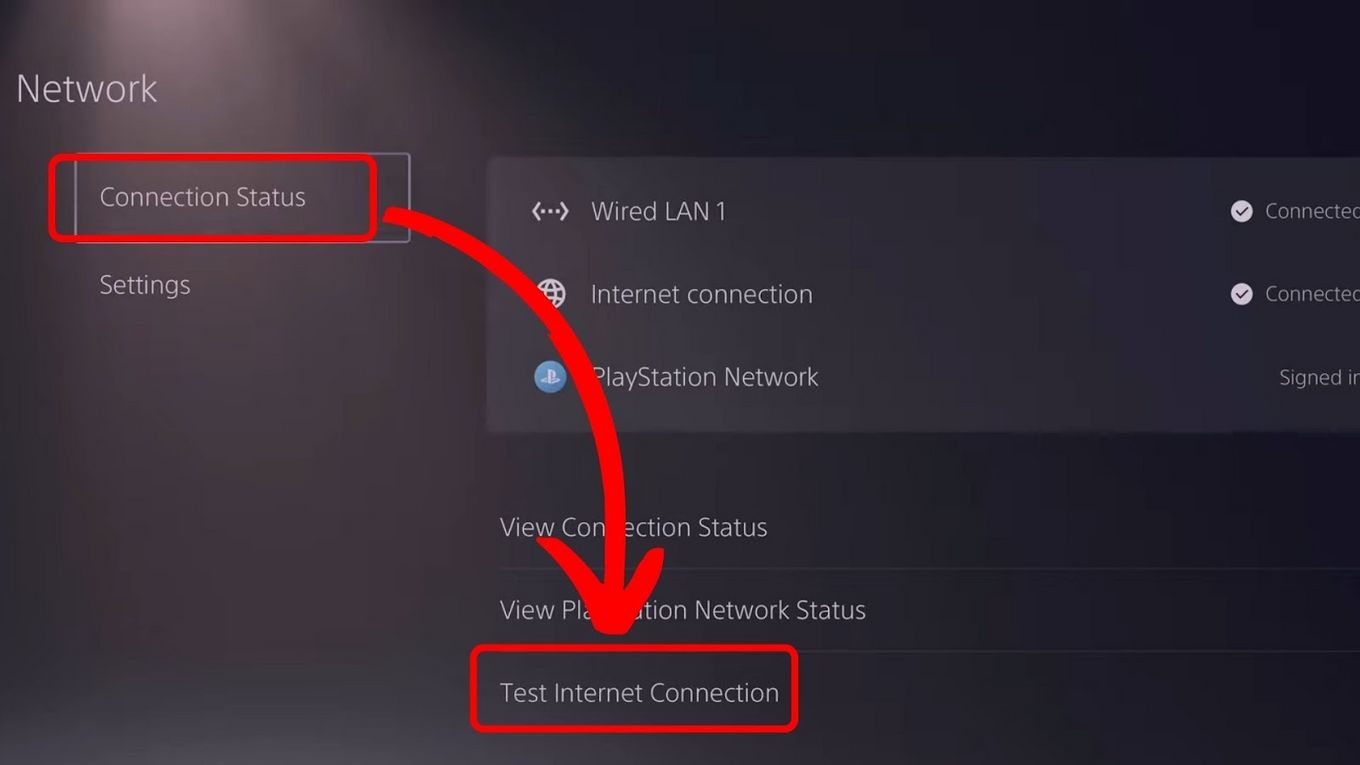
- Test Connection: After entering the password, the PS5 will attempt to connect. Once successful, perform a “Test Internet Connection” to ensure everything is working correctly.
If this works, congratulations! You’re ready to game. However, for most hotels with captive portals, this method will lead to an error, prompting you to try the next steps.
Navigating Captive Portals: The PS5 Browser and Beyond
This is where the process gets a bit more involved. The key is to bypass or satisfy the captive portal’s authentication requirements.
Method 1: Using the PS5’s Web Browser
Despite its limitations, the PS5 does have a basic web browser that can sometimes be used to interact with captive portals.
- Initiate Connection: Follow steps 1-3 from the Standard Method above. Connect to the hotel Wi-Fi network.
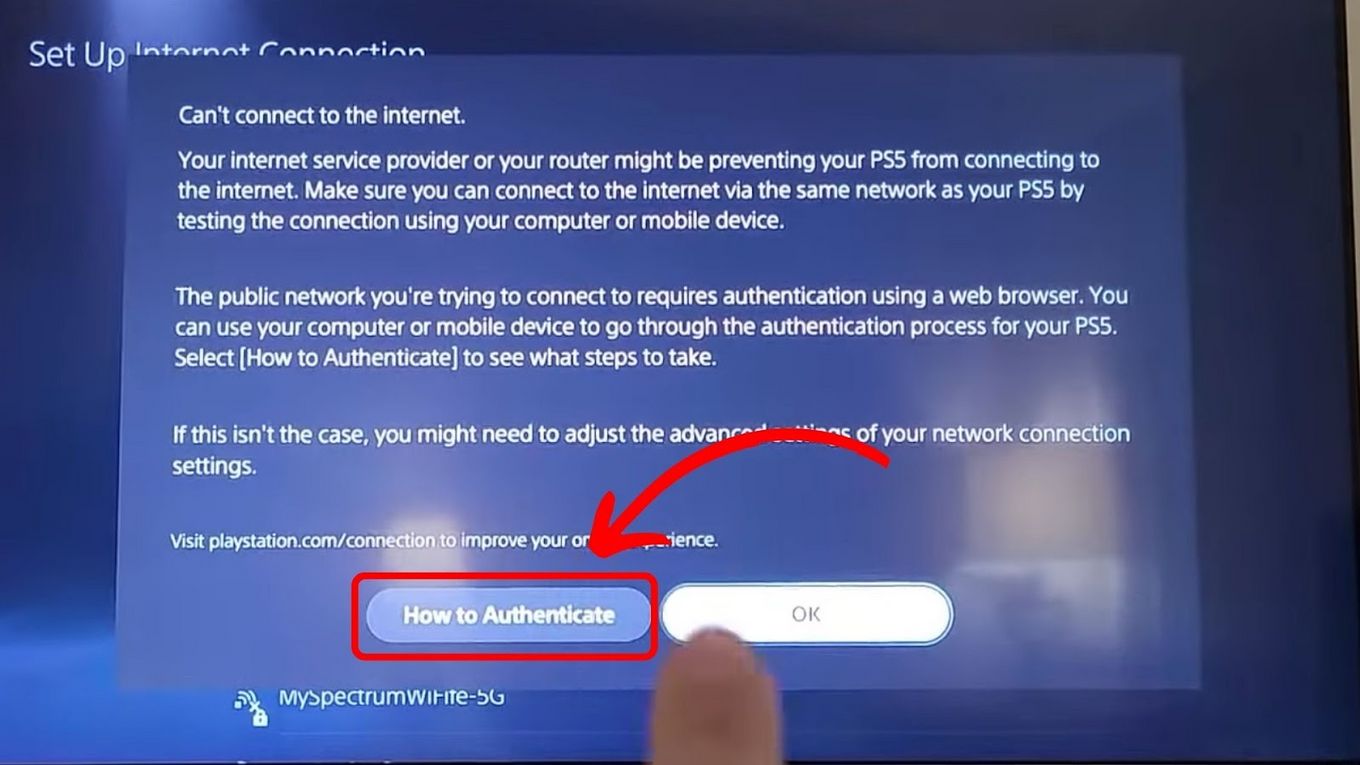
- Connection Failure (Expected): The PS5 will likely fail to connect fully or provide an error message indicating that an external browser is needed.
- Launch Web Browser: Go back to the PS5’s home screen. The PS5 doesn’t have a standalone browser app readily visible. You’ll need to open a game or app that uses the browser, or more reliably, navigate to the “Users and Accounts” section, select “Link with Other Services,” and then choose any social media service like Twitter or YouTube. This action will typically launch the PS5’s internal browser, and hopefully, redirect you to the hotel’s captive portal login page.
- Authenticate: Once on the captive portal page, enter your required details (room number, last name, email, agreement to terms, etc.) and complete the login process.
- Re-Test Connection: After successful authentication in the browser, go back to Network Settings and perform “Test Internet Connection” again. Your PS5 should now be fully connected.
Method 2: MAC Address Spoofing (Advanced but Effective)
This method is highly effective for stubborn captive portals but requires another device (a smartphone or laptop) and a bit of technical know-how.
- Find PS5’s MAC Address: In your PS5’s Network Settings, go to “View Connection Status.” Scroll down to find the “MAC Address (Wi-Fi).” Write it down.
- Register a Different Device: On your smartphone or laptop, connect to the hotel Wi-Fi and complete the captive portal login process. Ensure this device is fully connected to the internet.
- Change MAC Address on Your Registered Device:
- On your phone/laptop, locate its Wi-Fi MAC address.
- Crucially, change your phone/laptop’s MAC address to your PS5’s MAC address. This process varies by device:
- iPhone/iPad: Settings > Wi-Fi > Tap the “i” next to the connected network > Toggle off “Private Wi-Fi Address.” This effectively makes the phone use its original MAC address. Then, you’d need a third-party tool or more advanced network settings to spoof. This is getting complex.
- Android: Settings > About Phone > Wi-Fi MAC Address. Some Android phones allow MAC spoofing in developer options or via specific apps.
- Windows: Command Prompt (
ipconfig /all) to find current MAC. Use Device Manager to change the MAC address of your Wi-Fi adapter. - macOS: System Preferences > Network > Wi-Fi > Advanced > Hardware. You can often manually enter a MAC address.
- Important Note: The goal here is to get the hotel network to “think” your PS5 is the device that successfully logged into the portal. So, if you manage to change your laptop’s MAC address to be identical to your PS5’s MAC address, and then log your laptop into the portal, the network will register the PS5’s MAC address as authenticated.
- Disconnect and Reconnect PS5: Once your phone/laptop (now masquerading as your PS5) is successfully online via the portal, disconnect your phone/laptop from the hotel Wi-Fi. Then, try connecting your PS5 to the hotel Wi-Fi directly using the standard method. The network should now recognize its MAC address as already authenticated.
This method requires careful execution and familiarity with your secondary device’s network settings. If you’re uncomfortable with MAC address manipulation, Method 3 is a safer bet.
Method 3: Contacting the Front Desk
When all else fails, or if you prefer a simpler solution, the hotel staff are your best resource.
- Gather Information: Note your PS5’s Wi-Fi MAC address (from Network Settings > View Connection Status).
- Call or Visit: Contact the front desk or concierge. Explain that you are trying to connect a gaming console (a PS5) and are having trouble with the captive portal.
- Provide MAC Address: Ask if they can manually register your PS5’s MAC address on their network. Many modern hotel systems allow staff to bypass the captive portal for specific devices.
- Follow Instructions: They might provide you with a special password, instruct you to connect to a different network, or confirm registration.
This method is often the most reliable, especially at larger hotel chains like Sheraton or DoubleTree by Hilton, which have dedicated IT support or well-trained staff for such issues.
Alternative Connectivity Solutions for the Discerning Traveler
Sometimes, direct Wi-Fi isn’t optimal or even feasible. For those who prioritize a stable, high-performance connection while exploring landmarks or relaxing in a suite, several alternatives exist.
1. Ethernet Connection: The Gold Standard
If your hotel room provides an Ethernet port, this is by far the most reliable and fastest option.
- Locate Port: Check near the desk or TV for an Ethernet port.
- Connect Cable: Plug an Ethernet cable from the wall port directly into the PS5’s Ethernet port.
- Network Settings: Go to PS5 Settings > Network > Settings > Set Up Internet Connection. Choose “Use a LAN Cable.”
- Easy Setup: Select “Easy” setup. The PS5 will automatically detect the connection.
- Test and Game: Perform a “Test Internet Connection.” This method usually bypasses captive portals entirely and offers superior speed and stability, perfect for online gaming sessions from Dubai to Singapore.
2. Travel Router: Your Personal Wi-Fi Hotspot
A compact travel router is an excellent investment for frequent travelers. It creates a personal, secure Wi-Fi network from any available hotel Wi-Fi or Ethernet connection.
- Connect Travel Router: Plug the travel router into an available Ethernet port or connect it to the hotel’s Wi-Fi network (using your laptop/phone to complete the captive portal for the router).
- Connect PS5 to Travel Router: Once the travel router is online, connect your PS5 to your personal Wi-Fi network broadcast by the travel router, just like you would at home.
- Benefits: This offers a private network, bypasses device limits, and provides a stable connection for multiple devices simultaneously, ideal for families on a budget travel adventure or a business stay. Popular brands include GL.iNet and TP-Link.
3. Mobile Hotspot: Leveraging Your Smartphone
If you have a robust mobile data plan and strong cellular signal, your smartphone can act as a personal hotspot.
- Activate Hotspot: Enable “Personal Hotspot” or “Mobile Hotspot” on your smartphone.
- Connect PS5: On your PS5, go to Network Settings and connect to your phone’s hotspot as if it were any other Wi-Fi network.
- Considerations: Be mindful of data caps, potential throttling, and the strength of the cellular signal, especially in remote attractions or areas with limited infrastructure. While convenient, this might not be suitable for bandwidth-intensive online gaming over extended periods. It’s often best for quick updates or light gaming.
Optimizing Your Gaming Experience on the Go
Successfully connecting your PS5 is just the first step. To truly enjoy your gaming while traveling, especially when staying at diverse accommodations from city apartments to mountain villas, optimization is key.
Managing Bandwidth and Latency
Hotel Wi-Fi often struggles with latency (ping) and overall bandwidth, both crucial for online gaming.
- Choose Off-Peak Hours: If possible, game during less busy times (early mornings or late nights) when fewer guests are using the network.
- Wired is Better: Always prioritize an Ethernet connection if available. It dramatically reduces latency and increases stability.
- Reduce Background Downloads: Ensure your PS5 isn’t downloading game updates or patches in the background while you’re trying to play online.
- Adjust Game Settings: Some online games allow you to lower graphical settings or resolution, which can sometimes reduce the amount of data needed, potentially improving performance on a weaker connection.
- DNS Settings: Experiment with changing your PS5’s DNS settings. Public DNS servers like Google DNS (8.8.8.8, 8.8.4.4) or Cloudflare DNS (1.1.1.1, 1.0.0.1) can sometimes provide faster routing than the hotel’s default DNS, improving connectivity and reducing latency. You can configure this manually in your PS5’s network settings.
Troubleshooting Common Issues
Even with the best preparation, issues can arise.
- “Cannot Connect to the Internet” Errors: If you get these, it’s often a captive portal issue. Try the browser method or MAC spoofing again, or contact the front desk.
- Slow Speeds/Lag: This points to bandwidth limitations or poor signal. Try moving your PS5 closer to the Wi-Fi access point (if known), switch to Ethernet, or use a travel router/mobile hotspot.
- Intermittent Disconnections: Could be due to signal instability or the hotel network “forgetting” your device. Reconnect, try a different Wi-Fi channel (if using a travel router), or consider the front desk for manual registration.
- DNS Errors: If you’ve manually set DNS, try reverting to automatic or switching to another public DNS. If using a travel router, ensure its DNS settings are correctly configured.
Remember, patience and persistence are key. Tourism and travel are about adapting to new environments, and sometimes that extends to adapting your technology.
Conclusion: Gaming as Part of Your Global Journey
Integrating your PS5 into your travel routine allows for a unique blend of exploration and relaxation. Whether you’re conquering virtual foes after visiting the historic Colosseum in Rome or embarking on a digital quest from your suite overlooking the Eiffel Tower, the ability to connect seamlessly enhances your overall experience. This guide has equipped you with the knowledge and strategies to overcome the common challenges of hotel Wi-Fi, turning potential frustration into effortless connectivity.
From understanding captive portals and employing clever browser tricks to leveraging the power of Ethernet or a travel router, you now have a toolkit to ensure your PlayStation 5 is always ready for action. Embrace the modern travel lifestyle where your passion for gaming can accompany you across continents and cultures. Happy travels, and even happier gaming!
LifeOutOfTheBox is a participant in the Amazon Services LLC Associates Program, an affiliate advertising program designed to provide a means for sites to earn advertising fees by advertising and linking to Amazon.com. Amazon, the Amazon logo, AmazonSupply, and the AmazonSupply logo are trademarks of Amazon.com, Inc. or its affiliates. As an Amazon Associate we earn affiliate commissions from qualifying purchases.