
Traveling can be an exhilarating experience, offering a chance to explore new destinations, immerse yourself in local culture, and create lasting memories. Yet, even the most avid explorers sometimes crave the comfort of familiar entertainment, especially after a long day of sightseeing or during downtime on a business trip. For many, that comfort comes in the form of their PlayStation 4 (or PS4), a portal to beloved games, streaming services, and a sense of home away from home. However, the seemingly simple task of connecting your PS4 to hotel Wi-Fi can often become a frustrating ordeal, leading to head-scratching moments and even calls to the front desk.

This comprehensive guide is designed to demystify the process, offering practical solutions and expert tips to ensure your gaming console gets online smoothly, whether you’re staying at a luxurious Marriott resort in Dubai, a boutique hotel in Paris, or a budget-friendly accommodation in the heart of New York City. We’ll delve into why hotel Wi-Fi can be tricky for consoles, explore various methods for connection, troubleshoot common issues, and provide best practices for hassle-free gaming on the go, making your travel experience even more enjoyable.
Understanding the Hotel Wi-Fi Conundrum for Gaming Consoles
Before diving into solutions, it’s crucial to understand why connecting a PS4 to hotel Wi-Fi isn’t as straightforward as connecting your smartphone or laptop. The primary culprit is often the “captive portal” authentication system that many hotels use.
The Captive Portal Challenge
A captive portal is a webpage that automatically appears when you first try to access a public Wi-Fi network. It typically requires you to enter a room number and last name, a password provided at check-in, or agree to terms and conditions before granting full internet access. While standard web browsers on devices like phones, tablets, and laptops can easily display and interact with these portals, gaming consoles like the PS4 (and Xbox One or Nintendo Switch for that matter) are not designed with a fully functional web browser that can reliably handle this type of interaction.
When your PS4 attempts to connect, it sees the Wi-Fi network but can’t display the captive portal page for authentication. Consequently, it gets stuck in a loop where it’s connected to the hotel’s local network but denied full internet access. This leads to frustrating error messages and an inability to access PlayStation Network (PSN), streaming apps, or online games.
Network Restrictions and Bandwidth Limitations
Beyond the captive portal, hotel Wi-Fi networks often come with other restrictions. Some may block specific ports or protocols commonly used by gaming consoles to protect their network infrastructure or prioritize certain types of traffic. Bandwidth can also be a significant issue. Many hotels distribute a limited amount of bandwidth among numerous guests, meaning that even if you connect, your gaming experience might be plagued by high latency (lag) and slow download speeds, especially during peak hours. This is a common concern for travelers across all budget ranges, from those enjoying luxury travel to those opting for more budget travel options.
Step-by-Step Guide to Connecting Your PS4 to Hotel Wi-Fi
Successfully connecting your PS4 often requires a bit of clever maneuvering. Here are several methods, ranging from simple tricks to more robust solutions, to get your console online.
Method 1: The Browser Trick (Most Common Solution)
This method leverages the PS4‘s rudimentary web browser to interact with the captive portal.
- Connect to the Hotel Wi-Fi: On your PS4, navigate to Settings > Network > Set Up Internet Connection. Choose Use Wi-Fi and then Easy. Select the hotel’s Wi-Fi network from the list. If there’s a password (rare for captive portal networks), enter it.
- Test Internet Connection (and Fail): After selecting the network, the PS4 will attempt to connect and test the internet connection. It will likely fail to “Obtain IP Address” or “Internet Connection,” which is expected because you haven’t authenticated yet.
- Launch the Web Browser: Go back to the PS4 home screen. Open the Library and find the Internet Browser application. Launch it.
- Engage the Captive Portal: When the browser opens, it should automatically redirect you to the hotel’s captive portal page. If it doesn’t, try navigating to a simple, unencrypted website like
http://neverssl.com. This often triggers the redirect. - Authenticate: Once the captive portal appears, use your PS4 controller to navigate the page, enter your room number, last name, or the provided password, and accept any terms and conditions. Click the “Connect” or “Login” button.
- Re-test Connection: After successful authentication in the browser, close the browser, and go back to Settings > Network > Test Internet Connection. This time, it should succeed. Your PS4 is now online!
Pro Tip: If the browser trick doesn’t work, sometimes connecting another device (like your smartphone or laptop) to the hotel Wi-Fi and authenticating with the same credentials can sometimes “register” your PS4’s MAC address with the network, allowing it to connect without further portal interaction. However, this is less reliable.
Method 2: Using a Wi-Fi Hotspot (Smartphone or Travel Router)
This is often the most reliable method, especially if the browser trick fails or if you require a more stable, personal connection.
Smartphone Hotspot
Your smartphone can act as a personal Wi-Fi hotspot, sharing its cellular data connection with your PS4.
- Enable Hotspot: On your Android or Apple smartphone, go to Settings and find the Personal Hotspot or Mobile Hotspot option. Enable it and note the network name (SSID) and password.
- Connect PS4 to Hotspot: On your PS4, go to Settings > Network > Set Up Internet Connection. Choose Use Wi-Fi and Easy. Select your phone’s hotspot network from the list and enter the password.
- Enjoy: Your PS4 should connect immediately.
Caveat: This method uses your mobile data plan. Be mindful of data caps, especially if you’re streaming or downloading large game updates. This can be costly if you’re traveling internationally and not on an unlimited plan.
Travel Router
A dedicated travel router is an excellent investment for frequent travelers or those on extended stays in hotels or apartments.
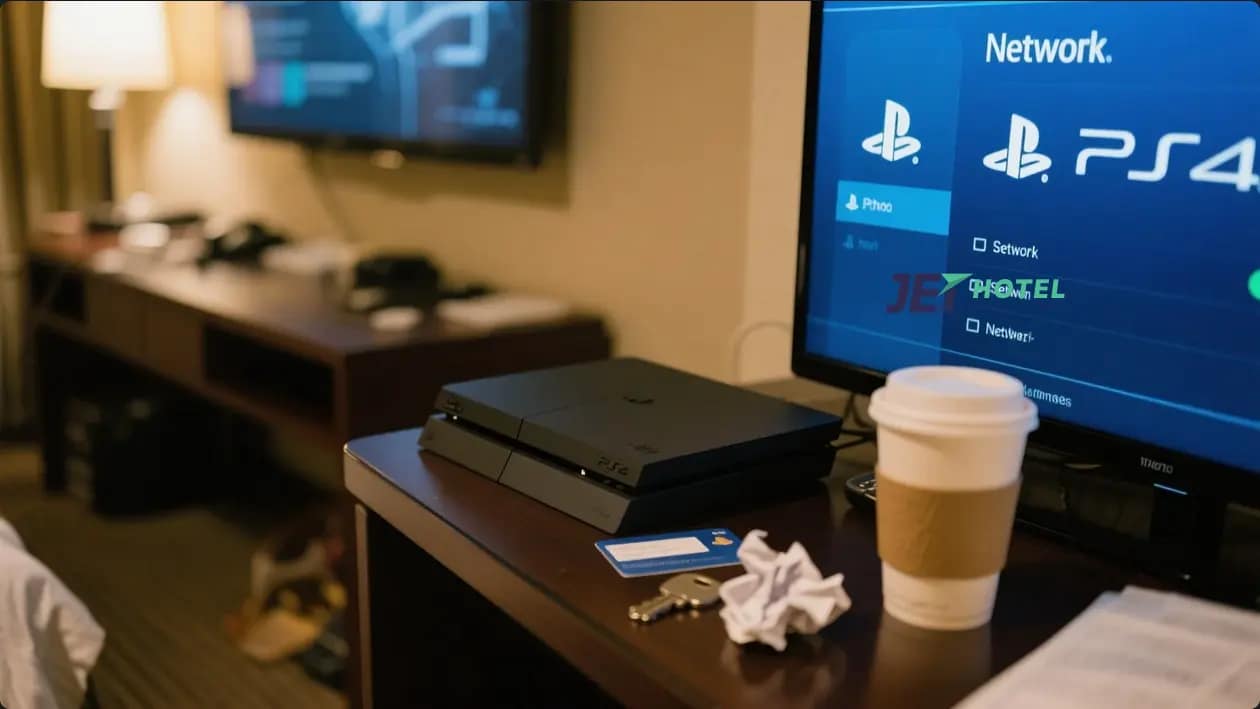
- Connect Router to Hotel Wi-Fi: Set up your travel router to connect to the hotel’s Wi-Fi network. You’ll use your laptop or phone to access the router’s interface, where you can then navigate and authenticate through the captive portal. Once the router is connected, it acts as an intermediary, sharing the internet connection.
- Connect PS4 to Travel Router: On your PS4, go to Settings > Network > Set Up Internet Connection. Choose Use Wi-Fi and Easy. Select your travel router’s network (it will have its own SSID and password) and connect.
Benefits: A travel router creates a private, secure network for all your devices, bypassing captive portals for your PS4 (and other devices like Nintendo Switch or smart TVs). It’s especially useful in hotels that charge per device for Wi-Fi.
Method 3: Ethernet Connection (If Available)
This is the most stable and often fastest option, though not always available. Many hotels, particularly older ones or those catering to business travelers, still offer Ethernet ports in the room.
- Locate Port: Check the desk, near the TV, or by the phone for an Ethernet port (looks like a slightly larger phone jack).
- Connect: Plug one end of an Ethernet cable into your PS4’s Ethernet port and the other into the wall port.
- Set Up Connection: On your PS4, go to Settings > Network > Set Up Internet Connection. Choose Use a LAN Cable and then Easy.
- Authenticate (if needed): Some Ethernet connections in hotels also require captive portal authentication. If the PS4 connects but fails the internet test, try launching the Internet Browser as described in Method 1 to authenticate.
Method 4: Contacting the Hotel Front Desk
If all else fails, don’t hesitate to contact the hotel front desk or their IT support. Explain that you’re trying to connect a gaming console and that it’s unable to access the captive portal. They might be able to:
- Whitelist Your PS4’s MAC Address: Provide them with your PS4’s MAC address (found in Settings > Network > View Connection Status). They can sometimes manually register it to bypass the captive portal.
- Provide an Alternative Login: Some hotels have a special URL or a direct password that doesn’t require the captive portal for certain devices.
- Offer Troubleshooting: While not always experts in gaming consoles, they might have specific instructions for their network.
Troubleshooting Common Connection Issues
Even with the right method, you might encounter bumps in the road. Here’s how to address them.
Slow Speeds and Latency (Lag)
- Peak Hours: Hotel Wi-Fi is notoriously slow during peak usage times (evenings, weekends). Try gaming during off-peak hours if possible.
- Ethernet is King: If you have an Ethernet port, use it. It offers superior speed and stability compared to Wi-Fi.
- Travel Router Advantages: A travel router can sometimes improve signal strength and efficiency by creating a dedicated subnet for your devices.
- Check Hotel Tiers: Some hotels offer tiered Wi-Fi plans – a basic free tier and a faster premium tier (often for a fee). If speed is critical, consider upgrading.
Connection Drops
- Signal Strength: Ensure your PS4 is close enough to the Wi-Fi access point. Walls, furniture, and other electronic devices can interfere with the signal.
- Interference: Other electronic devices in the room (microwaves, cordless phones, even other guest’s devices) can cause interference.
- Hotel Network Reset: Sometimes the hotel network itself experiences issues. A quick call to the front desk to ask if they can reset the router for your room might help.
- Travel Router Stability: A travel router can provide a more consistent connection by maintaining a single link to the hotel network and broadcasting its own stable signal.
“Cannot Connect to Network” Errors
- Re-authenticate: Hotel Wi-Fi sessions often have a timeout. If you left your PS4 idle for a long time, you might need to reopen the Internet Browser and re-authenticate.
- Restart Everything: A classic IT solution: restart your PS4, your phone (if using a hotspot), and if possible, the travel router.
- Forget Network: On your PS4, go to Settings > Network > Set Up Internet Connection > Use Wi-Fi > Custom (or similar, depending on PS4 system software) and find an option to “Forget” or “Delete” the saved hotel Wi-Fi network. Then try connecting from scratch.
- DNS Settings: Rarely, the hotel’s DNS servers might be problematic. You can try manually setting your PS4’s DNS to public servers like Google DNS (Primary: 8.8.8.8, Secondary: 8.8.4.4) or Cloudflare (Primary: 1.1.1.1, Secondary: 1.0.0.1). This is done under Settings > Network > Set Up Internet Connection > Use Wi-Fi > Custom (or Use a LAN Cable > Custom).
Best Practices for Gaming on the Go
To minimize stress and maximize your gaming enjoyment, a little preparation goes a long way. This aligns perfectly with the lifestyle aspect of ensuring seamless entertainment during your journeys, whether they are family vacations or solo adventures.
Preparing Before You Travel
- Download Games and Updates: Before you leave home, download any games you plan to play and ensure all system updates and game patches are installed. This avoids large downloads on potentially slow hotel Wi-Fi.
- Check Your Data Plan: If you plan to use your smartphone as a hotspot, verify your mobile data plan, especially for international travel (e.g., traveling from the United States to Japan).
- Pack Essential Cables: Always bring a power cable for your PS4 and an HDMI cable. Consider an Ethernet cable (at least 10 feet) and a travel router if you’re a serious gamer.
- Consider a VPN: For added security and sometimes to bypass geo-restrictions on streaming services or certain game servers, a VPN (Virtual Private Network) on your travel router can be beneficial.
Essential Gear for Hotel Gaming
- HDMI Cable: Crucial for connecting to the hotel TV.
- Ethernet Cable: Your best bet for a stable, fast connection.
- Travel Router: A game-changer for bypassing captive portals and creating a reliable personal network. Brands like GL.iNet or TP-Link offer excellent portable options.
- Portable Power Strip: Useful for powering multiple devices when outlets are scarce.
- Headphones: Essential for immersive gaming without disturbing other guests.
Respecting Other Guests and Hotel Policies
- Volume Control: Be mindful of your noise levels, especially when playing games with loud audio. Use headphones or keep the volume low.
- Bandwidth Usage: While you’re paying for internet, excessive bandwidth usage (e.g., constant large downloads) can impact other guests’ experiences. Try to manage your online activities responsibly.
- TV Settings: Be careful when changing hotel TV settings. Always switch the input back to its original setting before checking out. If you’re unsure how to change input, look for buttons on the TV remote labeled “Input,” “Source,” or “HDMI.”
Connecting your PS4 to hotel Wi-Fi doesn’t have to be a daunting task. By understanding the challenges of captive portals and employing the right techniques—whether it’s the browser trick, a personal hotspot, or an Ethernet connection—you can ensure your gaming and entertainment needs are met during your travels. With a bit of foresight and the right gear, your PS4 can be a welcome companion, bringing familiar comforts and endless fun to any hotel room, making your entire travel experience truly seamless and enjoyable.
LifeOutOfTheBox is a participant in the Amazon Services LLC Associates Program, an affiliate advertising program designed to provide a means for sites to earn advertising fees by advertising and linking to Amazon.com. Amazon, the Amazon logo, AmazonSupply, and the AmazonSupply logo are trademarks of Amazon.com, Inc. or its affiliates. As an Amazon Associate we earn affiliate commissions from qualifying purchases.