
The allure of The New Yorker extends far beyond its captivating digital presence. For many, the tactile experience of holding a meticulously crafted article, its prose etched onto paper, offers a distinct pleasure. Whether you wish to preserve a particularly insightful piece on Parisian cafes, a deeply researched exposé on the Galápagos Islands, or a witty profile of a rising artist in Berlin, the ability to print your chosen New Yorker article is a valuable skill. This guide will walk you through the process, ensuring you can capture the essence of these remarkable publications in a format that suits your preference, whether for personal archives, sharing with friends, or incorporating into a travel journal.

Understanding the Printing Process
Printing a digital article, particularly one from a publication known for its high editorial standards and sophisticated design like The New Yorker, involves a few key considerations. The goal is not merely to transfer text to paper, but to retain the article’s integrity, readability, and aesthetic appeal. This often means navigating the nuances of web page rendering and printer settings.
Preparing Your Article for Print
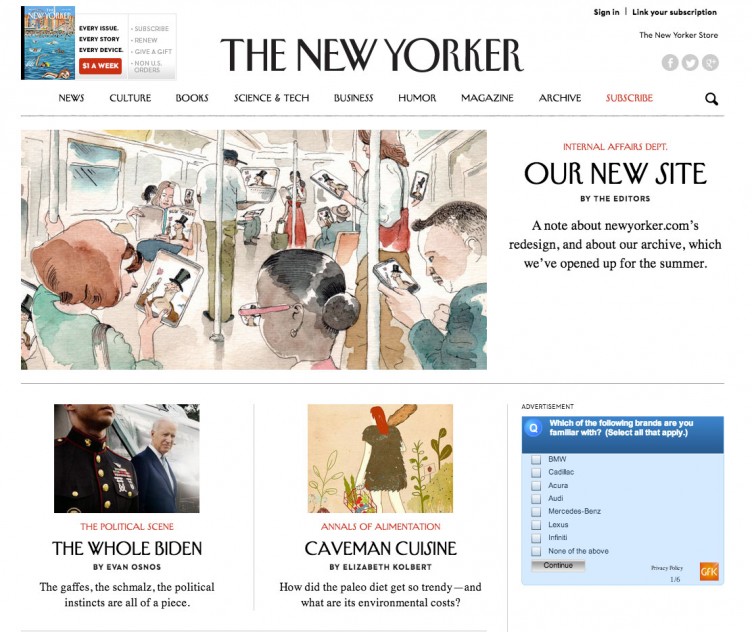
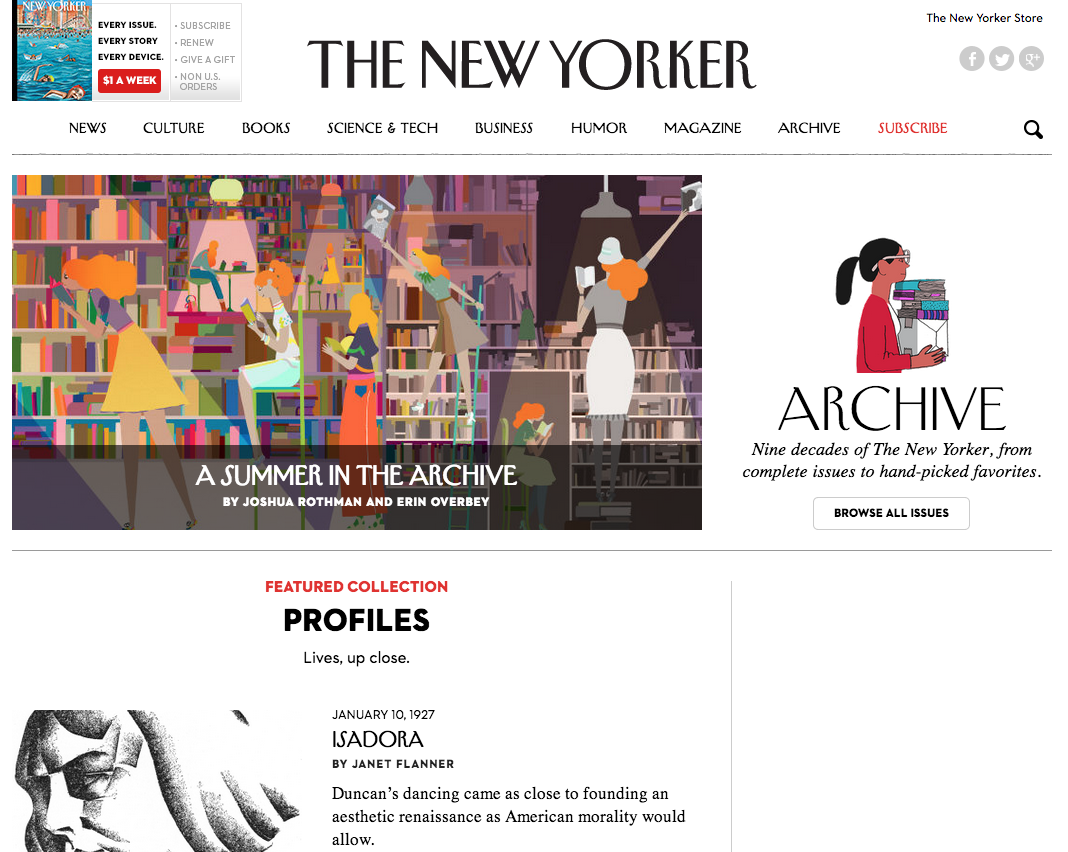
The first step in printing any article from The New Yorker‘s website is to ensure you are viewing the correct version. Often, online publications offer both a “web” version and a “print” or “reader” friendly version. The latter is typically stripped of distracting advertisements, sidebars, and navigation elements, presenting a cleaner, more streamlined layout that is ideal for printing.
- Locate the Article: Navigate to The New Yorker website and find the specific article you wish to print.
- Identify the Print-Friendly Option: Look for an icon or link that indicates a “Print,” “Reader Mode,” or similar function. This is often found at the top or bottom of the article. Clicking this will usually reload the page in a simplified format.
- Adjust Browser Settings: Before printing, it’s beneficial to adjust your browser’s print settings.
- Headers and Footers: Most browsers include default headers and footers that display the URL, page number, and title. For a cleaner printout, you may wish to disable these. In Chrome, for instance, this option is found under “More settings” within the print dialog.
- Background Graphics: Sometimes, disabling the printing of background graphics can save ink and improve the clarity of the text, especially if the website uses subtle background textures.
- Scale: Ensure the scaling is set to “Default” or “100%” initially. You can adjust this if the article appears too large or too small for your desired page layout.
Utilizing the Print Function
Once your article is in a print-friendly format and your browser settings are optimized, you can initiate the printing process.
- Open the Print Dialog: The standard keyboard shortcut for opening the print dialog is
Ctrl+P(on Windows) orCmd+P(on Mac). Alternatively, you can usually find a “Print” option within your browser’s main menu (often represented by three dots or lines). - Select Your Printer: Choose the printer you wish to use from the dropdown list.
- Review Print Preview: This is a critical step. The print preview will show you exactly how the article will appear on the page before it is printed. Carefully examine each page to ensure:
- Page Breaks: Articles should ideally not break awkwardly mid-sentence or mid-paragraph. If you notice this, you may need to adjust scaling or consider printing a smaller section.
- Layout: Text should be clear, readable, and well-aligned. Images, if included in the print version, should be properly placed.
- Completeness: Verify that all desired content is present.
- Adjust Print Settings (If Necessary): Based on the print preview, you might need to make further adjustments. This could include:
- Page Range: If you only want to print a specific section, you can define a custom page range.
- Orientation: Most articles will look best in portrait orientation, but some longer pieces might benefit from landscape if there are many images or complex layouts.
- Paper Size: Ensure the paper size selected matches the paper loaded in your printer.
- Initiate Printing: Once satisfied with the preview, click the “Print” button.
Advanced Printing Techniques for Enhanced Presentation
While the basic print function is straightforward, several advanced techniques can elevate the presentation of your printed New Yorker articles, transforming them from simple printouts into polished keepsakes or informative documents.
Ensuring High-Quality Output
The quality of your printed article depends not only on the source material and your settings but also on your printer and paper choice.
Printer Settings and Ink
- Resolution: If your printer allows for resolution adjustments, select a higher setting for sharper text and images.
- Ink/Toner: Ensure your printer has sufficient ink or toner. Low levels can result in faint text or streaks, diminishing the readability and aesthetic quality. Using genuine ink or toner from the printer manufacturer is generally recommended for the best results.
- Paper Type: While standard copy paper is adequate for casual printing, consider using slightly heavier, matte-finish paper for a more premium feel. This can enhance the richness of the text and reduce any show-through from the other side.
Handling Multi-Page Articles
- Consistent Formatting: When printing longer articles that span multiple pages, consistency in font size, margins, and spacing is paramount. The reader-friendly mode usually handles this well, but it’s always worth a quick check in the print preview.
- Page Numbering: Ensure page numbers are present and logically ordered. This is particularly useful if you are printing multiple articles and need to keep them organized.
Creative Ways to Present Printed Articles
Beyond simply printing, consider how you can best utilize and display your printed New Yorker content, especially if it relates to travel and exploration.
Incorporating into Travel Journals
Many travelers meticulously document their journeys in physical journals. A printed New Yorker article can be a powerful addition:
- Contextual Inserts: If you’re planning a trip to, say, Italy, and you find an article discussing the art scene in Florence or the culinary traditions of Rome, printing it out and pasting it into your journal provides rich background information.
- Visual Appeal: Trim the edges neatly and use a good quality adhesive, like a glue stick or double-sided tape, to secure the article. You can even lightly annotate it with your own thoughts or observations relevant to your travels.
- Thematic Grouping: Collect articles related to a specific destination or theme and create a dedicated section within your journal.
Creating Personal Archives
For those who appreciate the depth of reporting and the literary quality of The New Yorker, creating a personal archive can be incredibly rewarding.
- Thematic Collections: Organize printed articles by subject matter – perhaps a collection on exploration, on specific cities like London or Tokyo, or on particular cultural movements.
- Binding Options: For a more formal archive, consider investing in simple binding services or even using ring binders with archival-quality plastic sleeves. This protects the articles and makes them easily browsable.
- Digital Backup: While the focus here is on print, it’s prudent to also save a digital copy of the article before printing, in case of any unforeseen issues.
Sharing and Discussion
Printed articles can be an excellent way to share insights and spark conversations, especially if you’re traveling with companions or engaging in book clubs or discussion groups.
- Handouts: If a group is visiting a particular location, printing relevant articles can serve as informative handouts, enriching their experience. For example, an article on the history of New York City could be perfect for a group exploring its iconic landmarks.
- Book Club Material: For literary discussion groups, printing out a New Yorker profile or a short story can facilitate focused conversation, allowing participants to highlight specific passages and make annotations directly on the text.
Troubleshooting Common Printing Issues
Even with the best intentions, printing can sometimes present challenges. Understanding common issues and their solutions can save you time and frustration.
Readability and Layout Problems
- Text is Too Small or Too Large: Revisit your browser’s print settings and adjust the “Scale” option. If the print-friendly version of the article uses a very large font, you might need to scale it down slightly. Conversely, if it appears cramped, try scaling up. Always check the print preview after making adjustments.
- Pages Are Cut Off: This often occurs due to margins being set too narrowly or the content exceeding the printable area. Ensure your browser’s print settings are not configured to “Fit to page” in a way that distorts the original layout. Adjusting margins or scaling can resolve this.
- Distracting Website Elements: If you failed to find or activate the print-friendly version and are printing directly from the standard web page, you’ll likely see ads, navigation bars, and other extraneous elements. Always seek out the dedicated “print” or “reader” mode. If unavailable, use browser extensions designed to simplify web pages for printing.
Printer-Specific Challenges
- Printer Not Responding: Ensure your printer is powered on, connected to your computer (via USB or Wi-Fi), and has the correct drivers installed. Restarting both your computer and printer can sometimes resolve connectivity issues.
- Poor Print Quality (Streaks, Faint Text): This typically points to an issue with the printer itself. Check ink or toner levels. If they are adequate, run your printer’s built-in cleaning or maintenance cycles. Consult your printer’s manual for specific troubleshooting steps.
- Paper Jams: Always ensure paper is loaded correctly, without creases or tears. Remove any jammed paper carefully following your printer’s instructions to avoid damaging the internal mechanisms.
By following these guidelines, you can ensure that your printed New Yorker articles are not only accurate reproductions of the original content but also aesthetically pleasing and useful additions to your personal library or travel documentation. The ability to hold a physical copy of a well-crafted piece allows for a different, often deeper, level of engagement with the material, a truly timeless experience in the digital age.
LifeOutOfTheBox is a participant in the Amazon Services LLC Associates Program, an affiliate advertising program designed to provide a means for sites to earn advertising fees by advertising and linking to Amazon.com. Amazon, the Amazon logo, AmazonSupply, and the AmazonSupply logo are trademarks of Amazon.com, Inc. or its affiliates. As an Amazon Associate we earn affiliate commissions from qualifying purchases.