
Traveling the world, exploring exotic destinations, and indulging in unique experiences are undoubtedly exhilarating. From the bustling streets of Tokyo to the serene beaches of Cancun, every journey offers a new adventure. Yet, for many modern travelers, especially those who appreciate a blend of adventure and relaxation, a familiar question often arises: how do I stay connected, even with my gaming console, when I’m away from home? Bringing your PlayStation 5 (PS5) on a trip can be a fantastic way to unwind after a day of sightseeing or to stay entertained during a long business stay. Whether you’re chasing trophies in a single-player epic like Cyberpunk 2077 or joining friends for some online action in Fortnite, connecting your PS5 to a hotel’s Wi-Fi can sometimes feel like an boss battle in itself.

Hotel Wi-Fi, while convenient, often presents unique challenges for gaming consoles compared to smartphones or laptops. These networks typically employ what are known as “captive portals,” requiring an additional step of authentication through a web browser before granting full internet access. Since the PS5 doesn’t automatically launch a browser for Wi-Fi logins, many gamers find themselves scratching their heads. This comprehensive guide will navigate you through the intricacies of connecting your PS5 to hotel Wi-Fi, ensuring your accommodation becomes a hub for both exploration and entertainment. We’ll cover everything from the underlying technical hurdles to practical step-by-step solutions, helping you enjoy seamless gaming wherever your travels take you, from a luxurious suite in Dubai to a cozy resort in the Maldives.
Understanding the Hotel Wi-Fi Challenge for Your PS5
Before diving into solutions, it’s crucial to understand why connecting your PS5 to hotel Wi-Fi can be more complicated than linking up your phone. These challenges stem from the design of public Wi-Fi networks, which prioritize security and user management in a multi-user environment.
Captive Portals Explained: Why They’re Tricky for Consoles
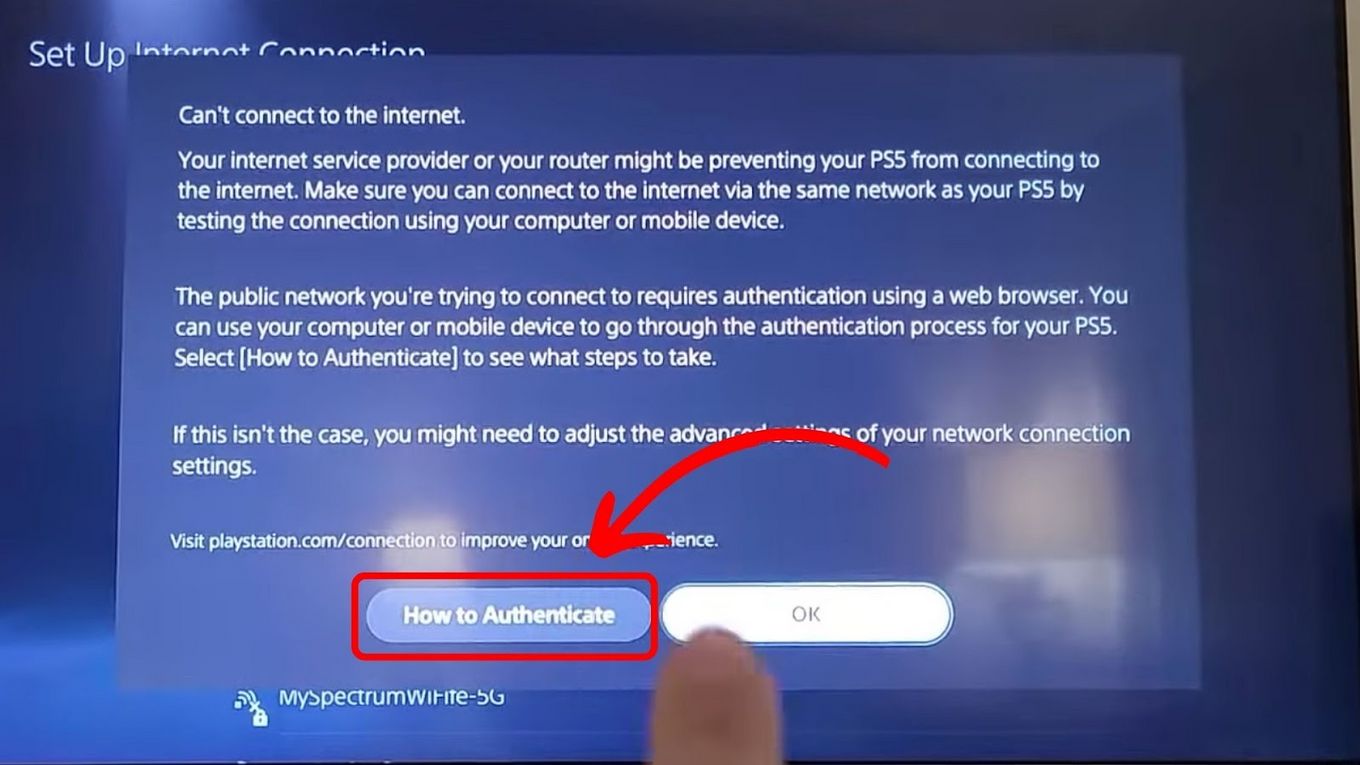
The primary culprit behind PS5 connectivity issues in hotels is the captive portal. This is a web page that users are redirected to when they first connect to a public Wi-Fi network. It’s designed to require users to agree to terms and conditions, enter a room number and last name, or provide a password (often given at check-in) before granting full internet access. While your iPhone or Android smartphone automatically detects and launches this portal in its browser, gaming consoles like the PS5 are not typically designed to do the same. They expect a direct, open connection, bypassing the need for a web-based authentication step.
This lack of an automatic browser pop-up means your PS5 connects to the Wi-Fi signal but remains in a walled-garden state, unable to access the broader internet or connect to PlayStation Network services. This issue isn’t exclusive to the PS5; other consoles like the Xbox Series X or even a Nintendo Switch can face similar hurdles, though the Switch does have a slightly more robust built-in browser that sometimes handles these portals better.
Bandwidth and Speed Considerations: What to Expect
Beyond the captive portal, the quality of hotel Wi-Fi itself can be a significant concern for gamers. Hotel networks are shared resources, meaning bandwidth is divided among all guests. During peak hours, especially in busy hotels or resorts in popular cities like London or New York City, speeds can drop dramatically. This can lead to high latency (lag), frequent disconnections, and painfully slow download times for game updates or new titles.
While single-player offline games won’t be affected, online multiplayer games like Call of Duty or Apex Legends require a stable and relatively fast connection. Even streaming services or system updates can become problematic with insufficient bandwidth. Before banking on an intense online gaming session, manage your expectations regarding the network’s performance. Some luxury hotels or boutique hotels might offer premium Wi-Fi tiers, which could provide better speeds, often for an additional fee. It’s worth checking with the front desk if a higher-tier service is available for a crucial gaming night.
Security Concerns: Protecting Your Data on Public Networks
Connecting to any public Wi-Fi network, including those in hotels, carries inherent security risks. These networks are often less secure than your home network, making your data potentially vulnerable to interception by malicious actors. While the PS5 itself has robust security features, the connection point is the weakest link.
It’s advisable to be cautious about sensitive activities like online banking or personal data transfers on hotel Wi-Fi. For gaming, this primarily means ensuring your PlayStation Network account is secure with a strong password and two-factor authentication. For an added layer of protection, consider using a Virtual Private Network (VPN) on a travel router (more on this later). A VPN encrypts your internet traffic, making it much harder for anyone to snoop on your activities, an essential consideration for any traveler conscious of their digital footprint.
Step-by-Step Guide: Connecting Your PS5 to Hotel Wi-Fi
Now that we understand the common pitfalls, let’s explore the most effective methods to get your PS5 online in your hotel room. These solutions range from simple workarounds to more advanced techniques.
The Direct Browser Method: The Most Common Solution
This is often the first and most straightforward approach. The PS5 does have a hidden web browser, which can be accessed through specific system functions.
- Connect to the Hotel Wi-Fi: On your PS5, go to Settings > Network > Settings > Set up Internet Connection. Select the hotel’s Wi-Fi network. It will attempt to connect, but likely fail to get an IP address or show an internet connection error. This is normal.
- Access the Hidden Browser:
- Go to Settings > Users and Accounts > Link with Other Services.
- Choose any service like Twitter or YouTube.
- This action will typically prompt the PS5 to launch a web browser to complete the login for that service. Crucially, this is the browser you need to access the captive portal.
- Authenticate on the Captive Portal: Once the browser opens, it should automatically redirect you to the hotel’s Wi-Fi login page. Enter your room number, last name, or password as required. Accept any terms and conditions.
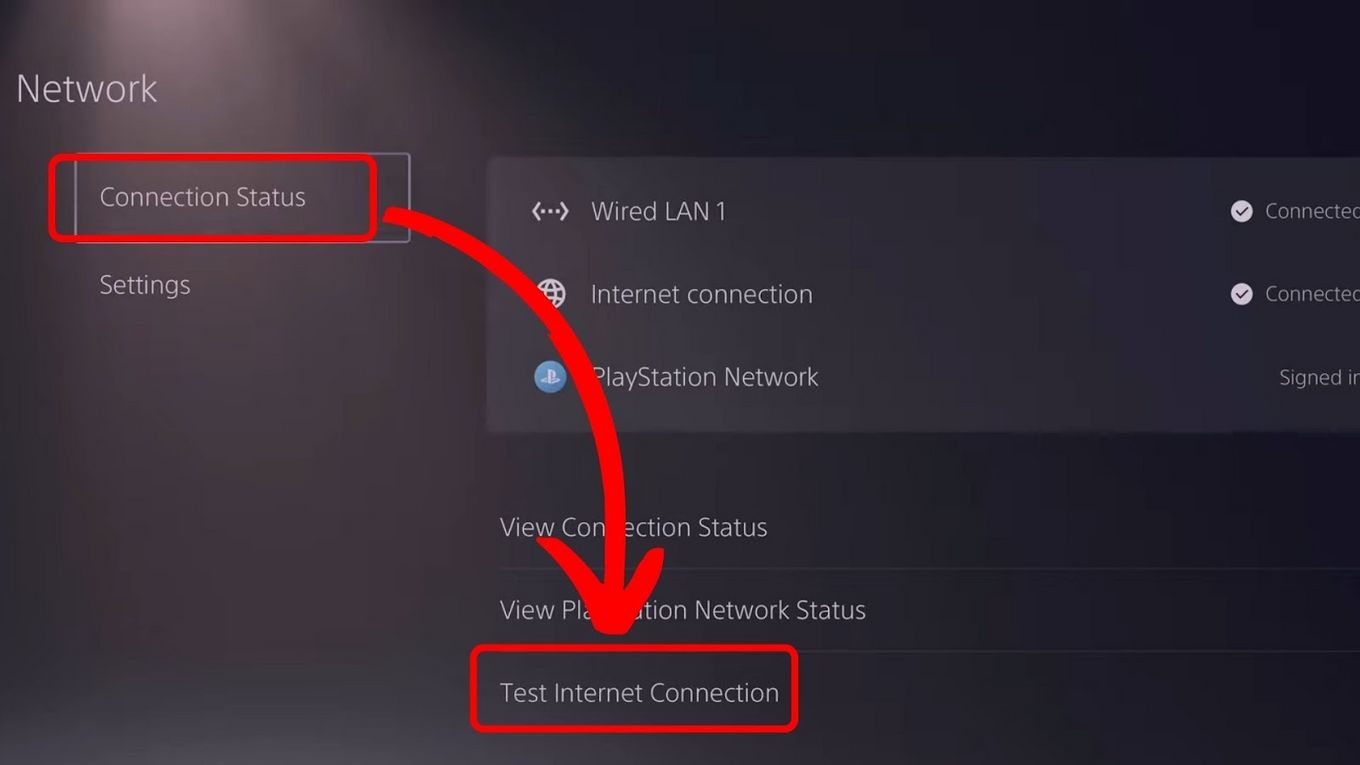
- Confirm Connection: After successful authentication, close the browser. Your PS5 should now establish a full internet connection. Test it by going to Settings > Network > Connection Status > Test Internet Connection.
This method works for many hotels, from large chains like Hilton and Marriott to smaller, independent accommodations.
Using a Smartphone or Laptop as an Intermediary: A Reliable Workaround
If the direct browser method fails, or if the captive portal is particularly stubborn, you can use another device to “trick” the hotel network into thinking your PS5 is an authorized device. This involves using a laptop (MacBook Air or Windows Laptop) or even a smartphone as a temporary bridge.
- Find your PS5’s MAC Address: On your PS5, go to Settings > Network > Connection Status > View Connection Status. Note down the MAC Address (LAN) or MAC Address (Wi-Fi), depending on whether you plan to use an Ethernet cable or Wi-Fi.
- Spoof the MAC Address (Laptop Method):
- Connect your laptop to the hotel Wi-Fi and successfully log in through the captive portal.
- Once connected, go to your laptop’s network settings and find its MAC address. Change your laptop’s MAC address to the PS5’s MAC address. This is called “MAC spoofing” and the exact steps vary by operating system.
- After spoofing, disconnect your laptop from the Wi-Fi.
- Now, connect your PS5 to the hotel Wi-Fi. Because the network now “sees” the PS5’s MAC address as already authenticated (since your laptop authenticated it), it should grant access.
- Smartphone Hotspot/Mobile Router Method (Less Common for Hotels, but useful if hotel offers no Wi-Fi or for general travel):
- Some hotels allow you to use a mobile hotspot as an alternative.
- Connect your phone to the hotel Wi-Fi and authenticate through the captive portal.
- Once your phone has internet, enable its personal hotspot feature.
- Connect your PS5 to your phone’s hotspot. Note: This will use your phone’s data plan, not the hotel Wi-Fi. This is more of a general travel solution if you don’t want to deal with hotel Wi-Fi, but can be expensive for large game downloads.
- A travel router can also act as an intermediary, logging into the hotel Wi-Fi and then broadcasting its own network that your PS5 can connect to, bypassing the captive portal entirely for the console.
Reaching Out to Hotel Staff: When All Else Fails
Sometimes, despite your best efforts, the hotel Wi-Fi simply won’t cooperate with your PS5. In these situations, the most direct approach is to speak with the hotel staff, specifically the IT or technical support team, if available.
Explain that you are trying to connect a gaming console and that it requires a browser-based authentication that isn’t appearing. Provide them with your PS5’s MAC address (which you noted down earlier). Many hotels have a process to manually register devices like game consoles by whitelisting their MAC addresses, bypassing the captive portal altogether. They might also be able to provide specific instructions or a direct, open network for such devices. Don’t be shy; this is a common request, especially in hotels catering to business travelers or families.
Optimizing Your Gaming Experience on the Go
Connecting to the internet is just the first step. To truly enjoy your PS5 while traveling, consider these tips for a smoother and more robust gaming experience.
Pre-Trip Preparations: Downloads, Updates, and Offline Games
Smart preparation can significantly reduce frustration once you’re on the road.
- Download Games and Updates at Home: Before you leave, make sure all your intended games are fully downloaded and updated. Large game files or system updates (PS5 updates can be several gigabytes) can quickly consume precious hotel Wi-Fi bandwidth and take hours, if not days, to complete.
- Identify Offline-Playable Games: Pack games that offer robust single-player campaigns or local co-op modes that don’t require an internet connection. Titles like Red Dead Redemption 2 or God of War are perfect for enjoying offline, ensuring entertainment even if hotel Wi-Fi is nonexistent or too slow for online play.
- Save Data Backup: Ensure your game saves are backed up to the cloud via PlayStation Plus or to a USB drive. This protects your progress against unforeseen issues.
Essential Gear for the Traveling Gamer: Ethernet Cables, Travel Routers
Having the right accessories can make all the difference.
- Ethernet Cable: Always pack a short (3-6 ft) Ethernet cable. Many hotel rooms, especially in modern hotels or conference centers, still provide an Ethernet port. A wired connection is almost always faster, more stable, and more secure than Wi-Fi, bypassing many of the wireless connectivity issues entirely.
- Travel Router: A compact travel router is a gamer’s best friend. Devices like the GL.iNet GL-AR750S-Ext (a specific brand example, if allowed) can connect to the hotel’s Wi-Fi (or its Ethernet port), authenticate through the captive portal via its own browser, and then broadcast its own secure, private Wi-Fi network. Your PS5 and other devices connect to your travel router, effectively bypassing the hotel’s portal for each individual device. Many travel routers also support VPN clients, adding a layer of security.
- Portable Power Strip: Hotel rooms notoriously lack sufficient power outlets. A small power strip with USB ports can be invaluable for charging your controllers, phone, and other devices simultaneously.
- HDMI Cable: While most TVs have one, having a spare HDMI cable (especially a high-speed HDMI 2.1 for PS5 features) ensures you can always connect to the hotel room TV.
Choosing the Right Hotel for Gamers: Amenities and Wi-Fi Quality
When planning your trip, consider your gaming needs as part of your accommodation booking.
- Check Wi-Fi Reviews: Look for hotel reviews specifically mentioning Wi-Fi quality and speed. Some travel review sites allow filtering by internet quality.
- Contact the Hotel Directly: Before booking, call the hotel and inquire about their Wi-Fi policies, speeds, and whether they can assist with connecting gaming consoles. Ask if Ethernet ports are available in rooms. This is especially relevant if you’re staying at a Grand Hyatt Hotel or a W Hotel where amenities are usually top-notch.
- Premium Wi-Fi Options: Some hotels offer tiered Wi-Fi services. If you plan extensive online gaming, consider paying for the premium option for a more stable and faster connection.
- Room Layout: Look for rooms that have accessible power outlets and a TV that’s easy to connect to. Some modern hotels integrate their TVs into smart systems, which can sometimes make HDMI input selection tricky.
Beyond Connection: Troubleshooting and Best Practices
Even with the best preparation, issues can arise. Here’s how to troubleshoot and maintain a good gaming experience.
Common Connectivity Issues and Solutions
- “Cannot Connect to the Internet” (after authentication): Sometimes the authentication just needs a nudge. Try restarting your PS5 or forgetting the network and re-connecting. If using a travel router, reboot the router.
- Slow Speeds/Lag: This is often a bandwidth issue. Try connecting during off-peak hours (early morning or late at night). If possible, use an Ethernet cable. Lower your in-game graphics settings if available, as this can sometimes reduce network strain slightly.
- Frequent Disconnections: This could be a weak Wi-Fi signal or interference. Try moving your PS5 closer to the room’s Wi-Fi access point (if visible) or using an Ethernet cable. Ensure other devices aren’t hogging bandwidth.
- DNS Issues: Rarely, a hotel’s DNS servers might cause problems. You can try manually setting your PS5’s DNS to public servers like Google DNS (8.8.8.8 and 8.8.4.4) or Cloudflare DNS (1.1.1.1 and 1.0.0.1) within the network settings.
Enhancing Network Performance: Tips for Smoother Gameplay
- Prioritize Devices: If you’re using a travel router, see if it has Quality of Service (QoS) settings that allow you to prioritize your PS5’s traffic over other devices.
- Minimize Background Downloads: Ensure no other devices (phones, laptops) are actively downloading large files or streaming high-resolution video while you’re gaming.
- Use a Gaming VPN (with caution): While a VPN can enhance security, it can also add latency if the VPN server is far away. Some VPNs offer servers optimized for gaming that might help bypass ISP throttling or improve routing, but test it first.
- Check for Wi-Fi Interference: Other electronic devices, microwaves, or even concrete walls can interfere with Wi-Fi signals. Try to minimize these factors if possible.
Security Best Practices for Public Networks
- Always Use Strong Passwords: For your PlayStation Network account and any other services you access.
- Enable Two-Factor Authentication: This adds a critical layer of security to your accounts.
- Use a VPN: As mentioned, a VPN encrypts your data, protecting it from prying eyes on unsecured public Wi-Fi. Many modern travel routers can host a VPN directly.
- Avoid Sensitive Transactions: Refrain from accessing banking or highly personal accounts on public networks unless you are using a secure VPN.
- Keep Software Updated: Ensure your PS5’s system software is always up-to-date, as updates often include security patches.
In conclusion, connecting your PS5 to hotel Wi-Fi can seem daunting at first, but with a clear understanding of captive portals and the right tools and techniques, it’s a conquerable quest. From utilizing the PS5’s hidden browser to deploying a trusty travel router, there are multiple avenues to ensure your gaming adventures continue uninterrupted, no matter where your travels take you. So, pack your console, prepare for the journey, and look forward to unwinding with your favorite virtual worlds after a day of exploring real-world landmarks and experiencing vibrant local cultures. Happy gaming and safe travels!
LifeOutOfTheBox is a participant in the Amazon Services LLC Associates Program, an affiliate advertising program designed to provide a means for sites to earn advertising fees by advertising and linking to Amazon.com. Amazon, the Amazon logo, AmazonSupply, and the AmazonSupply logo are trademarks of Amazon.com, Inc. or its affiliates. As an Amazon Associate we earn affiliate commissions from qualifying purchases.