
Navigating travel plans can sometimes be unpredictable. Whether a business trip to New York City is suddenly rescheduled, or a family vacation to Honolulu needs to be postponed, knowing how to modify your arrangements efficiently is essential. When you book your lodging through an online travel agency like Expedia, the cancellation process is usually straightforward, provided you understand the specific terms, timelines, and digital tools at your disposal.
Mastering the mechanics of an online reservation cancellation ensures that you protect your finances, avoid unnecessary fees, and secure refunds promptly. From understanding the nuances of refundable versus non-refundable room rates to navigating mobile applications and customer service lines, this comprehensive guide covers everything you need to know about terminating your lodging agreement smoothly.
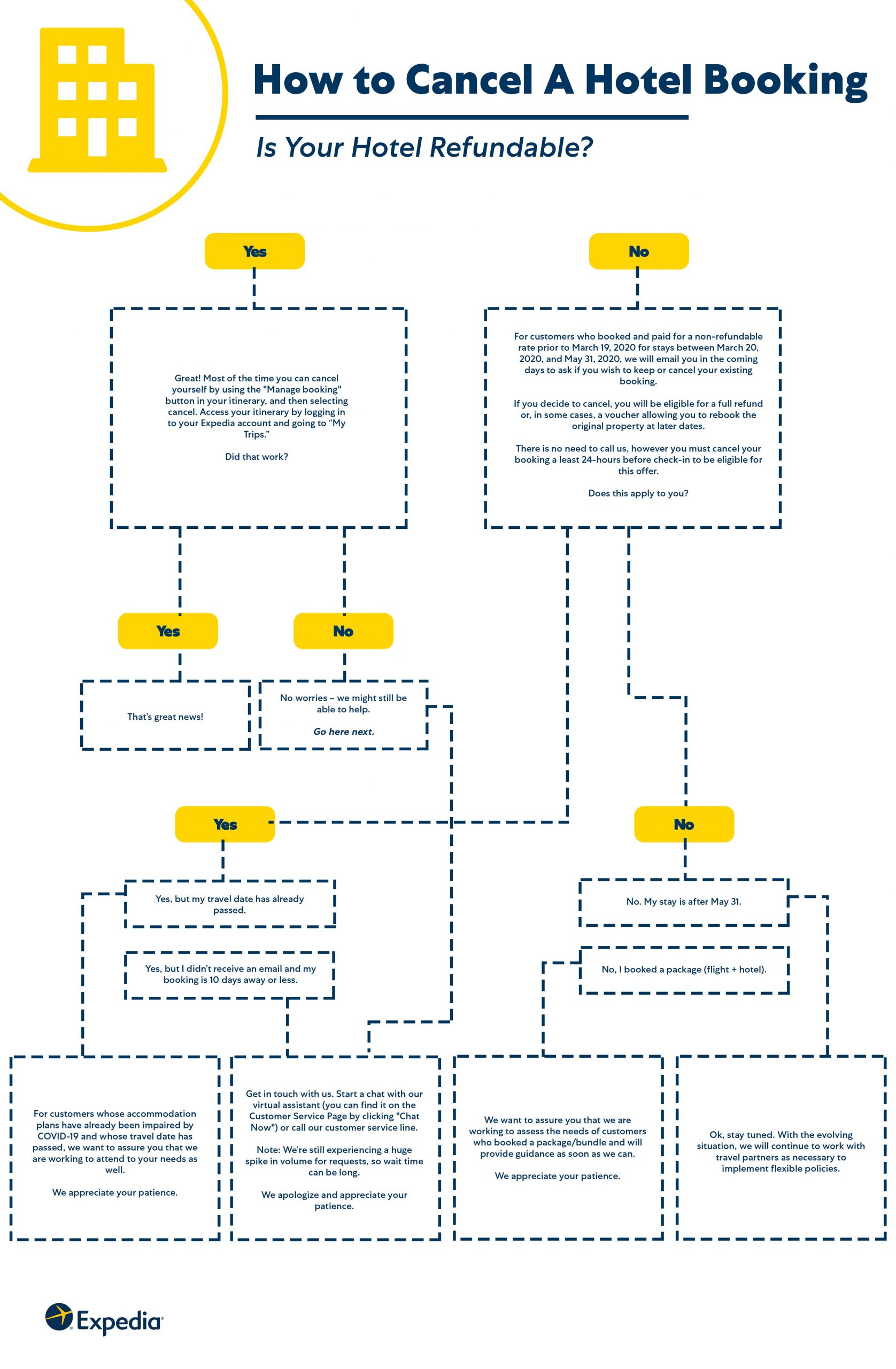
Understanding Expedia Cancellation Policies and Room Types
Before initiating any cancellation request, it is critical to examine the specific terms associated with your reservation. Not all hotel bookings are created equal, and the rules governing your stay largely depend on the type of rate you selected during the initial checkout process on Expedia Group.
Fully Refundable vs. Non-Refundable Rates
When browsing options for accommodations—whether staying at the luxurious Fairmont Chateau Whistler in Canada or a boutique property in Paris—you will typically encounter two primary pricing tiers:
- Fully Refundable Rates: These rooms generally cost slightly more upfront, but they offer maximum flexibility. You can cancel your stay without financial penalty up to a specified deadline, which is clearly stated in your confirmation email and the property’s policy section.
- Non-Refundable Rates: These bookings offer discounted rates as an incentive for commitment. If you cancel a non-refundable room, you typically forfeit the entire amount paid. However, in extenuating circumstances, properties or third-party platforms may occasionally offer travel credits or exceptions.
Pay Now vs. Pay Later
The payment method you chose also dictates how the cancellation is handled. If you selected the “Pay Later” option, your card was not charged at the time of booking, and the cancellation fee is zero if executed within the permitted window. If you chose “Pay Now,” Expedia collected the funds directly and will process the corresponding refund back to your original payment method once the cancellation is successfully registered in their system.
Step-by-Step Guide to Canceling Your Reservation Online
The digital dashboard provided by travel booking platforms makes self-service cancellations fast and efficient. If you prefer handling your travel management through a desktop browser or a personal laptop, follow these systematic steps to terminate your stay.
Accessing Your Account and Itinerary
- Log In: Navigate to the official website and sign into your user profile using the email address and password associated with your purchase. If you booked as a guest without creating an account, you can access your details via the confirmation email you received upon booking.
- Locate Your Trips: Click on the “Trips” or “My Trips” tab, typically located in the upper right-hand corner of the homepage. This section houses all past, present, and upcoming itineraries.
- Select the Specific Booking: Find the hotel stay you wish to cancel. Click on the corresponding itinerary to open the comprehensive details page, which displays check-in dates, room specifications, and cancellation guidelines.
Executing the Cancellation
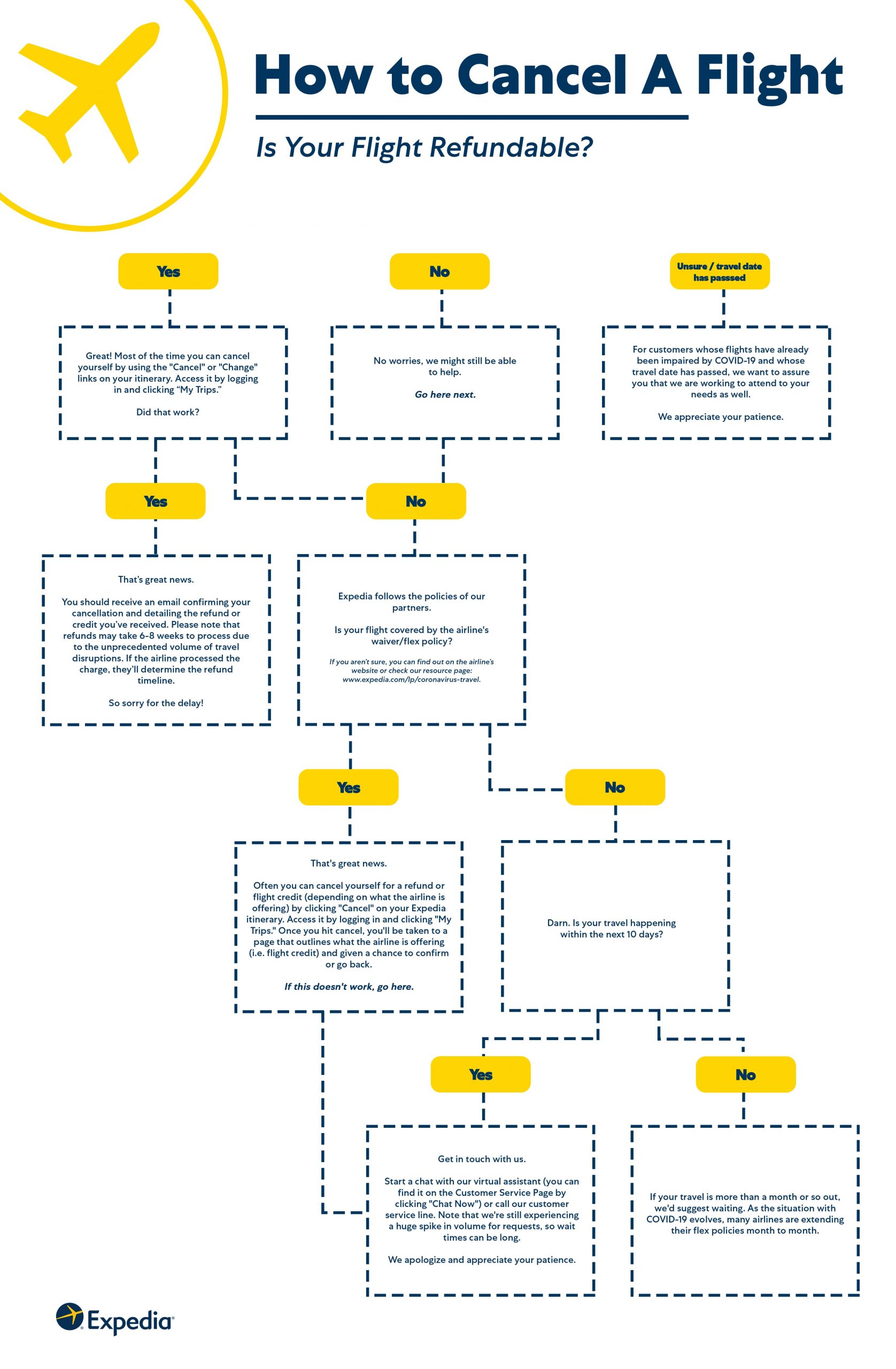
- Initiate the Process: Look for the “Cancel Booking” or “Change Booking” buttons displayed prominently within the itinerary view.
- Review Penalties: Before the system finalizes your request, a prompt will appear detailing any potential fees or confirming that your reservation is fully refundable. Read this carefully.
- Confirm Cancellation: Click the final confirmation button. Within minutes, you should receive a cancellation confirmation email containing a reference number and details regarding your pending refund. Save this email for your records.
Utilizing the Mobile App for On-the-Go Adjustments
Travelers frequently need to make adjustments while actively on the road, exploring destinations like Tokyo or London. The mobile application provides a streamlined interface for managing itinerary changes directly from a smartphone or tablet.
Navigating the App Interface
- Open the App: Launch the travel application on your iOS or Android device and ensure you are signed into your profile.
- Tap the Trips Icon: At the bottom navigation bar, tap the “Trips” icon to view your active reservations.
- Choose Your Lodging: Tap on the specific hotel reservation you need to alter.
Completing the Mobile Cancellation
- Access Management Options: Scroll down to find the management options and select “Cancel Room.”
- Verify Details: The app will display the exact refund amount and any applicable cutoff times based on the local time zone of the property.
- Finalize: Confirm the action. The app will immediately update your itinerary status to “Canceled” and send an automated digital receipt to your registered email address.
What to Do If You Encounter Issues or Need Assistance
While automated self-service systems handle the vast majority of itinerary changes seamlessly, certain situations require direct human intervention. Knowing how to troubleshoot complex scenarios ensures you are never left without recourse.
Dealing with Approaching Deadlines and Time Zones
A common pitfall for travelers is miscalculating time zones. If you booked a hotel in Sydney while residing in Los Angeles, the cancellation deadline operates according to the local time zone of the destination property, not your home clock. Always verify the exact time cutoff displayed in your booking confirmation to prevent accidental financial penalties.

Contacting Customer Support
If your travel dates fall outside standard policy windows, or if you encounter technical glitches while attempting to cancel online, you should contact customer support immediately.
- Virtual Assistant and Chat: Most major booking platforms feature 24/7 automated chat services that can quickly connect you with a live customer service representative. This is often the fastest method for requesting policy exceptions.
- Telephone Support: Dialing the customer service hotline allows you to speak directly with an agent. Be prepared to provide your itinerary number, the name on the reservation, and the email address used during checkout.
- Direct Hotel Communication: In urgent scenarios—such as severe weather disruptions, flight cancellations, or medical emergencies—reaching out directly to the front desk of the property can yield positive results. While third-party agencies enforce strict rules, individual hotel managers occasionally hold the authority to waive fees or issue travel vouchers in extenuating circumstances.
By familiarizing yourself with these procedures, you can manage your lodging arrangements with confidence, ensuring peace of mind throughout your entire travel experience.
LifeOutOfTheBox is a participant in the Amazon Services LLC Associates Program, an affiliate advertising program designed to provide a means for sites to earn advertising fees by advertising and linking to Amazon.com. Amazon, the Amazon logo, AmazonSupply, and the AmazonSupply logo are trademarks of Amazon.com, Inc. or its affiliates. As an Amazon Associate we earn affiliate commissions from qualifying purchases.